


Getting Started with OneKey Pro Hardware Wallet
A guide to setting up your OneKey Pro Hardware Wallet, which will help you manage Bitcoin and Cryptocurrency securely.
Please note: Before proceeding with the setup, it is essential to inspect the packaging and holographic seal to ensure that the hardware wallet is in perfect condition, unopened, and undamaged. If any tampering or damage is found, immediately discontinue use of the hardware wallet and contact us via LINE @bitcast to report it for inspection and a replacement hardware wallet to be sent.
What you need before setup:
- OneKey Pro Hardware Wallet
- Download and install the OneKey App Desktop.
- Pen and paper for the Recovery Sheet provided in the box.
Step 1: Prepare the equipment
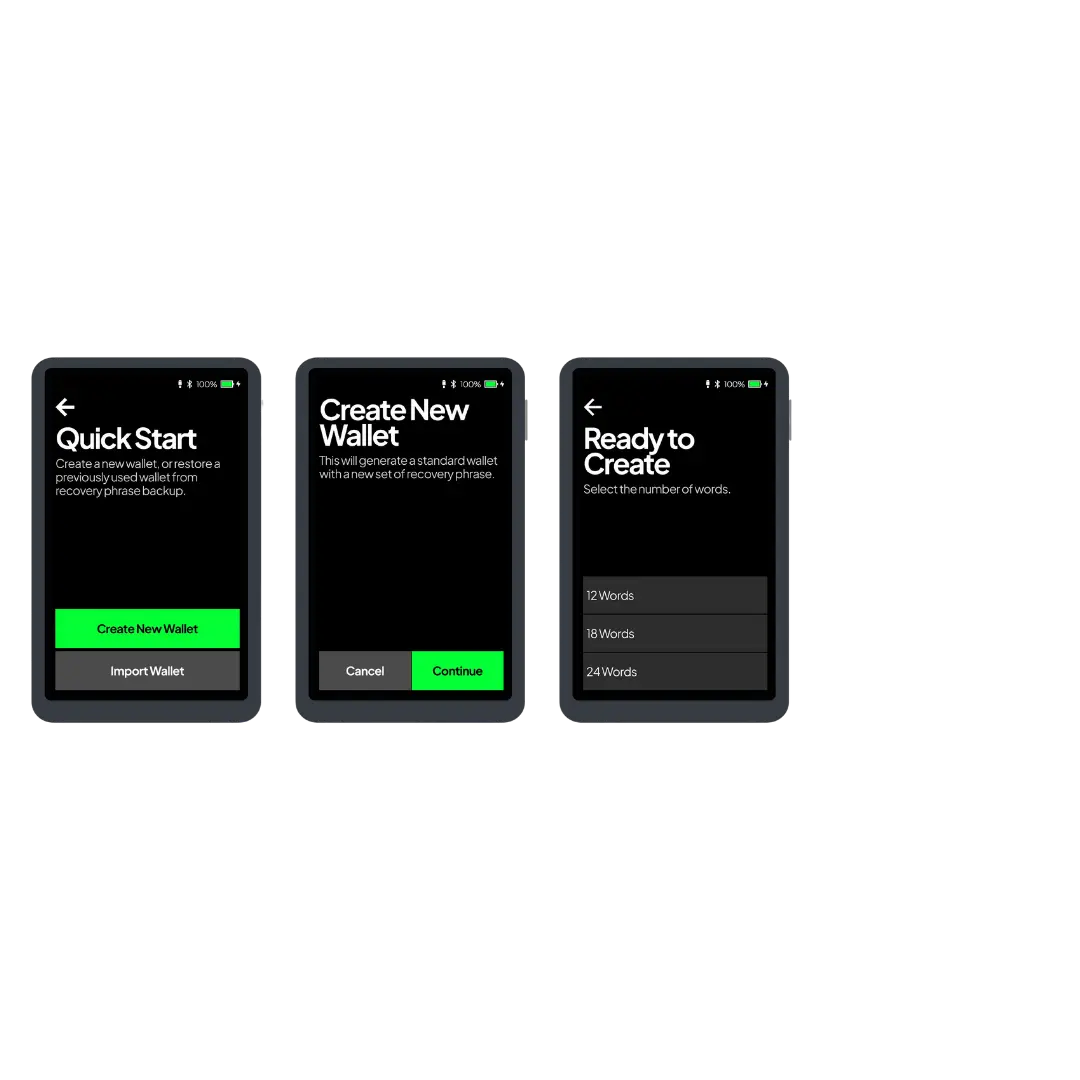
- Press and hold the power button for 3-4 seconds to turn on your OneKey Pro.
- Select your preferred system language by following the on-screen instructions.
- Select "Create New Wallet" to begin the process.
- When creating a new wallet, choose the number of words for your Seed Phrase (e.g., 12 or 24 words).
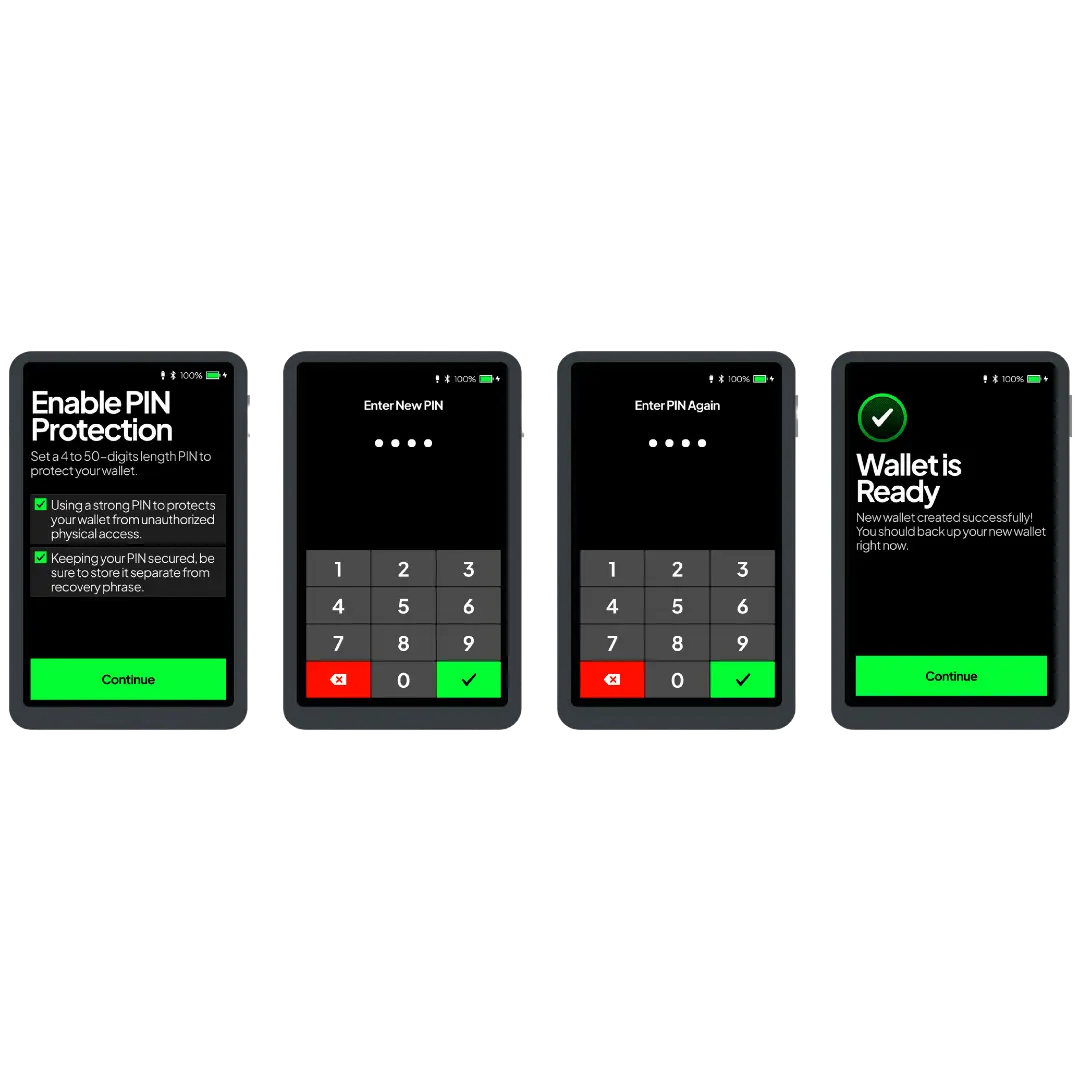
- Read the on-screen instructions to activate the PIN for unlocking the device, and then press continue.
- Enter a new PIN and select ☑️ to complete the process.
- Re-enter the PIN and select ☑️ to continue.
- Press "Continue" when "Wallet is ready" appears on the screen.
Security Tips
- The PIN is used to unlock the Hardware Wallet.
- Entering the incorrect PIN 10 times will reset the Hardware Wallet.
- Avoid using second-hand Hardware Wallets.
If you have further questions, please contact our Line Official Account @bitcast
Step 2: Verify Seed Phrase
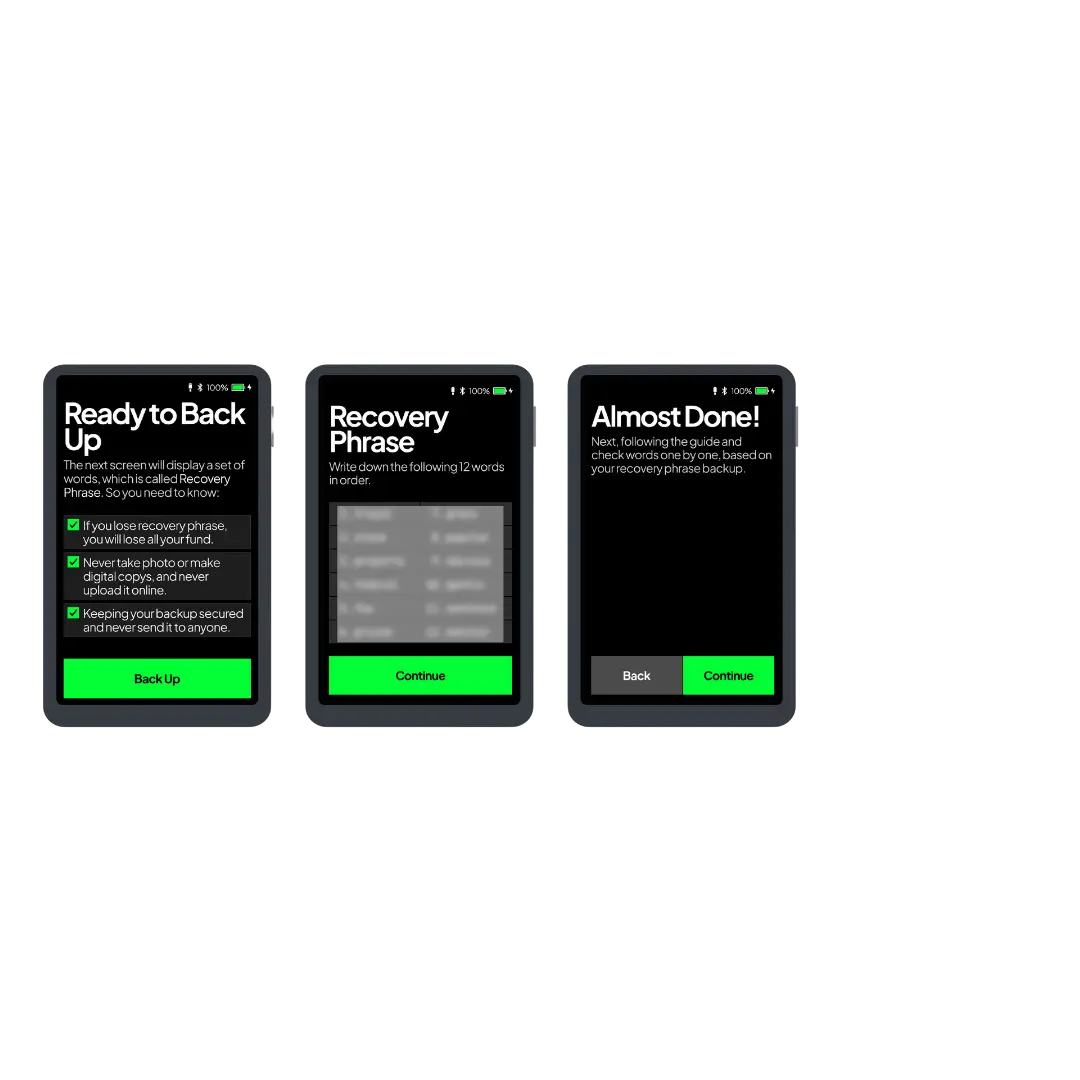
- Use the paper provided for writing down the Seed Phrase to record the 12-word Seed Phrase as displayed on the screen.
- Write down "Recovery Phrase #1" and ensure it is correctly recorded in position 1.
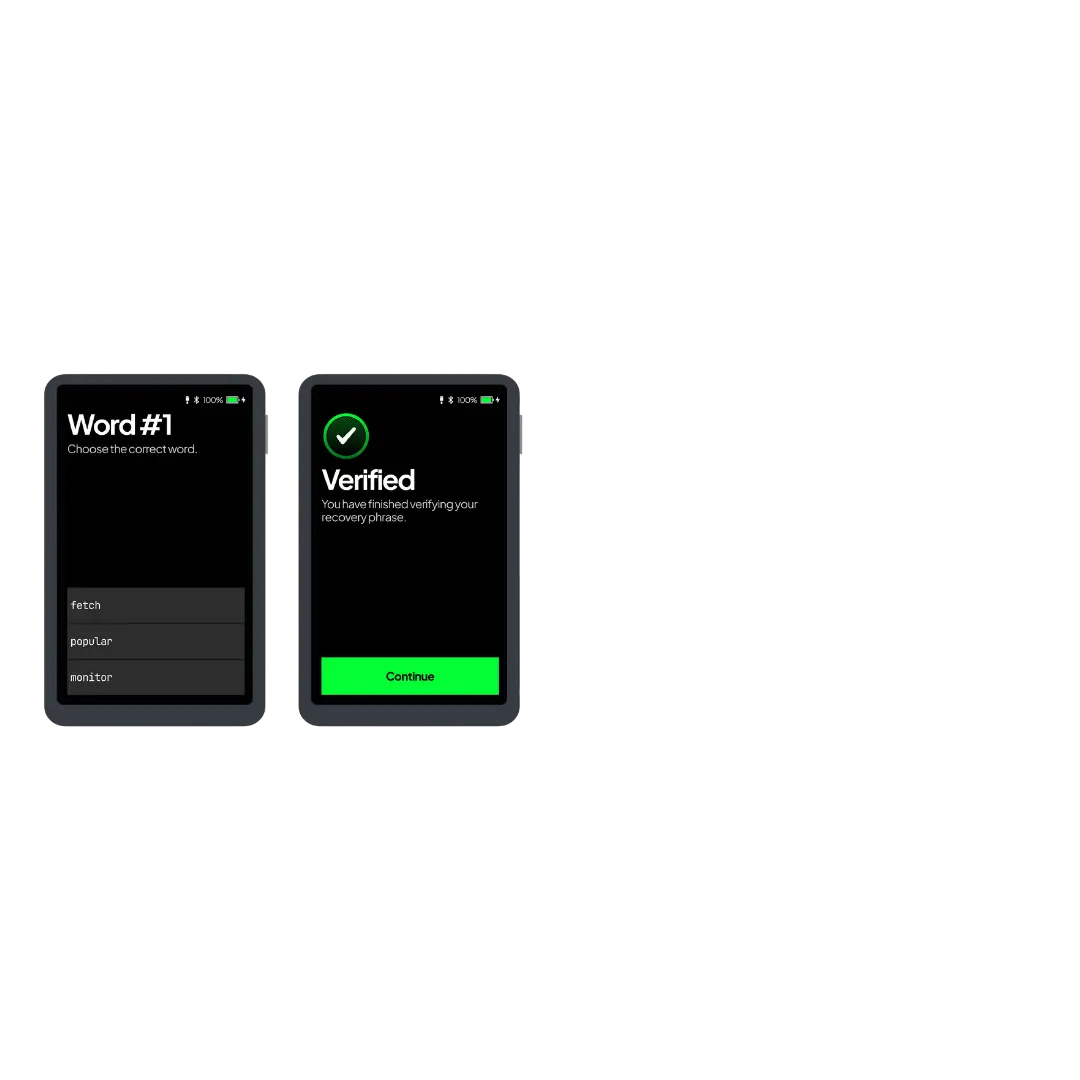
- Repeat this process and verify the accuracy of each word in its designated position.
- Click "Continue" to proceed to the Seed Phrase verification process when "Almost Done" appears on the screen.
Step 3: Connect OneKey Pro to OneKey App via USB cable
- Scan the QR code or go to 🔗 onekey.so/download to download and install the OneKey desktop app for your operating system (macOS, Windows, Linux).
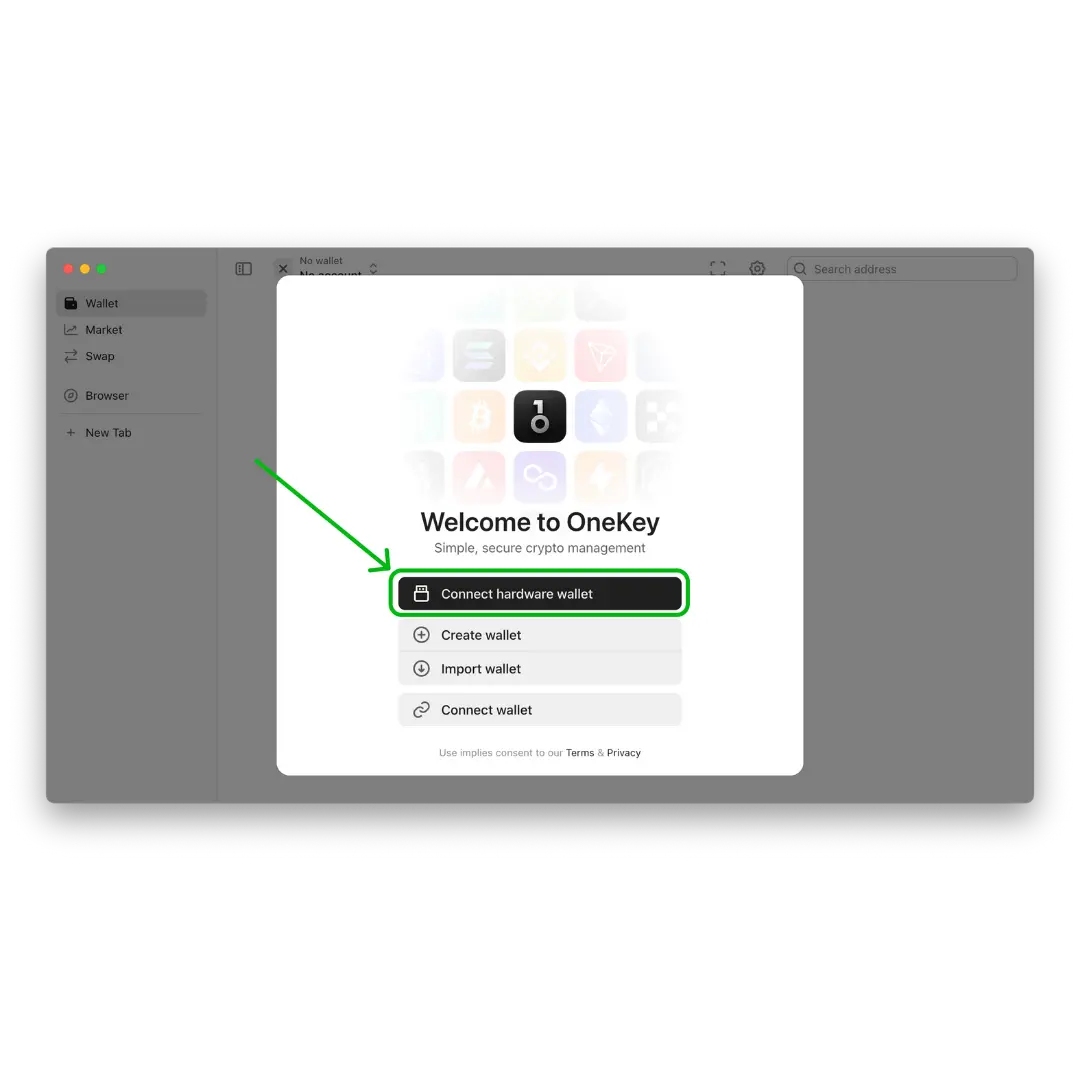
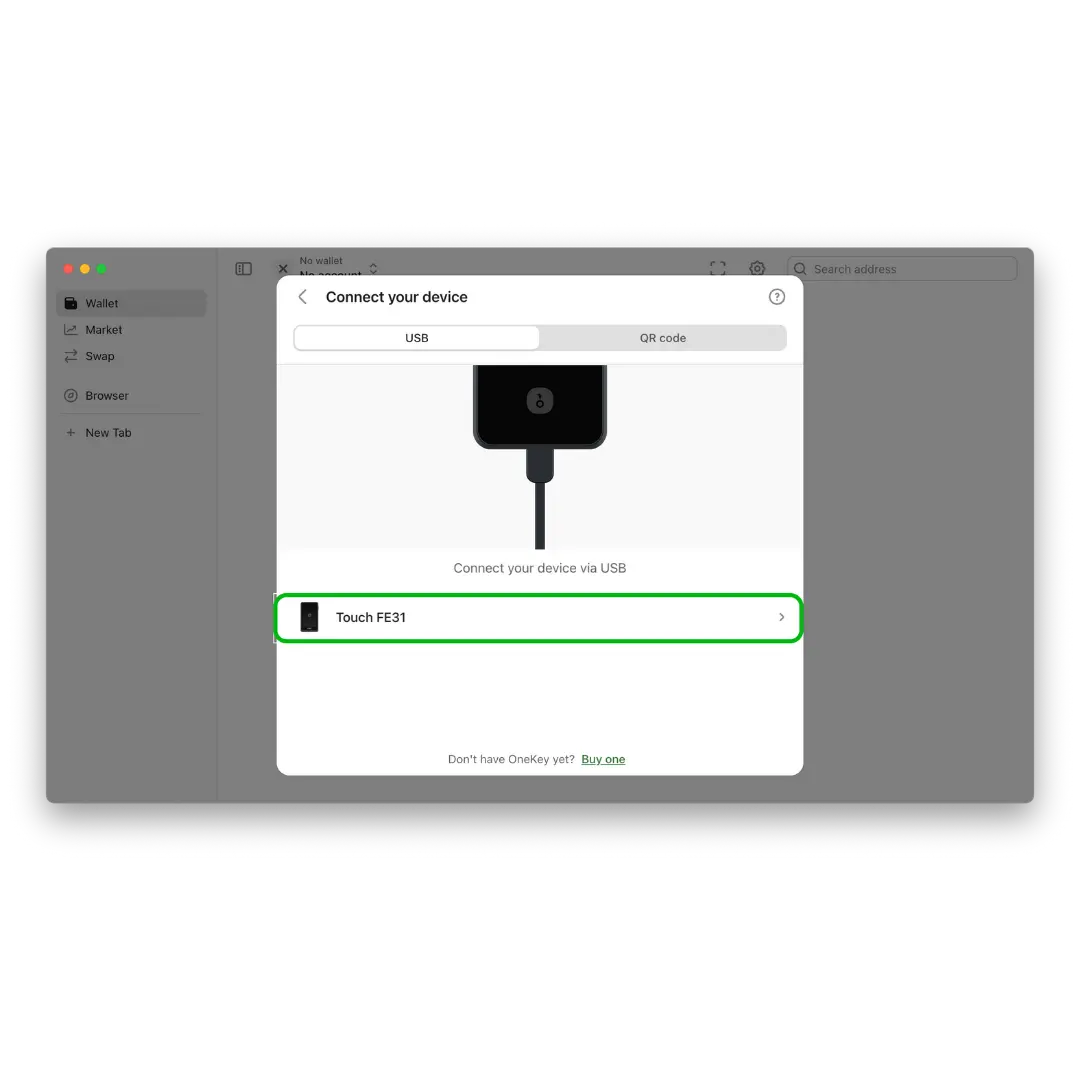
- Connect your OneKey Pro to your computer using a USB cable.
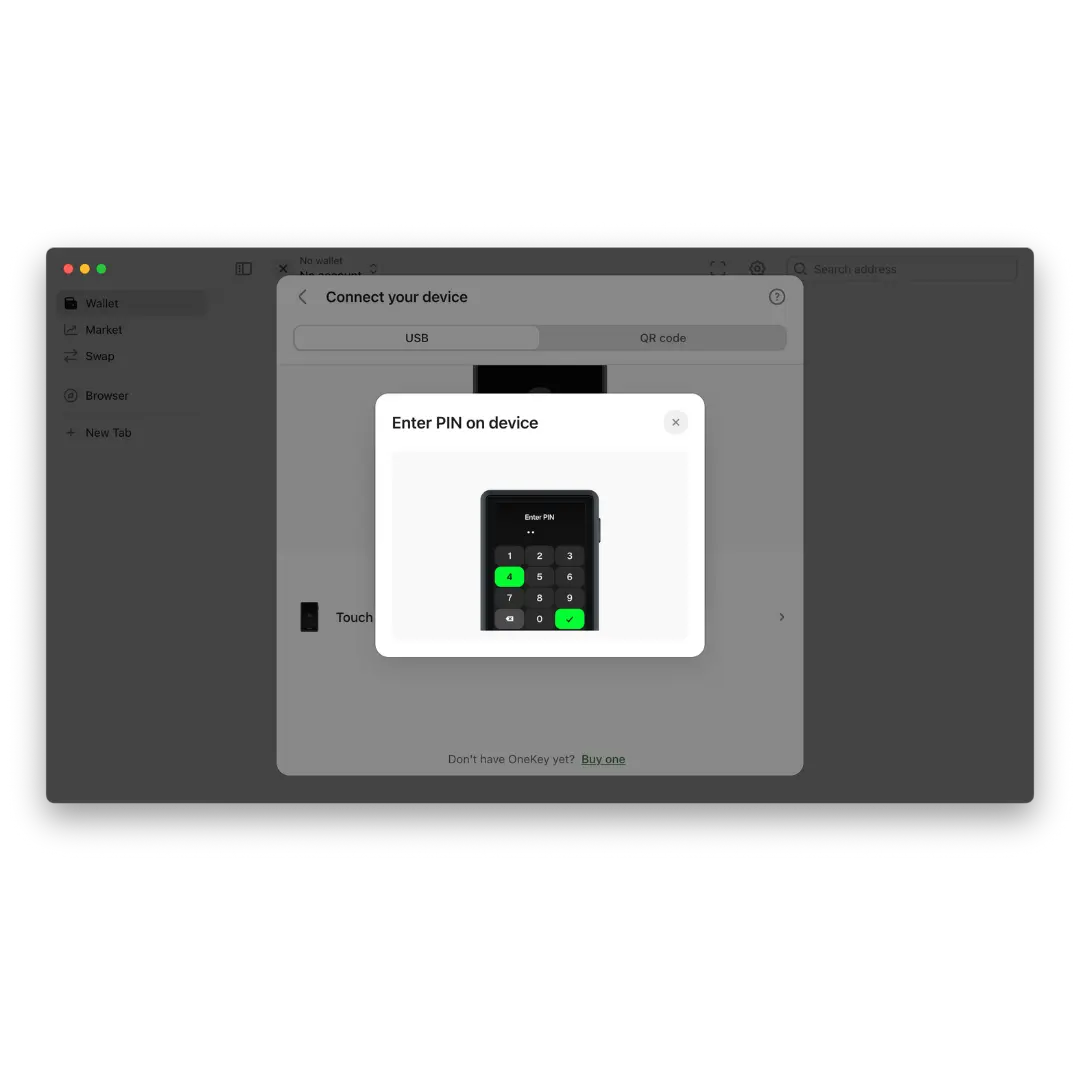
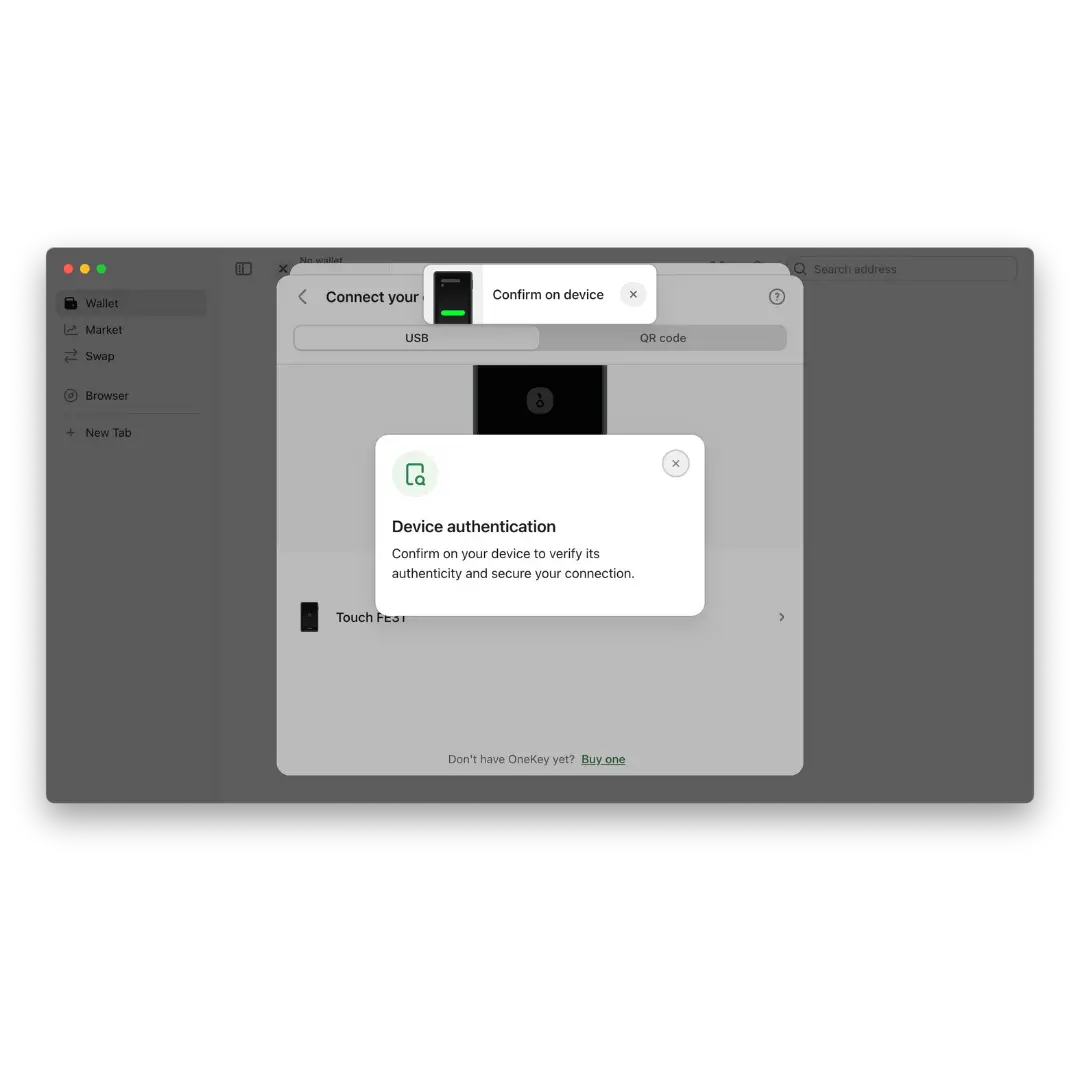
- Launch the OneKey Desktop App and select "Connect Hardware Wallet".
- View detailed instructions for using the OneKey App here.
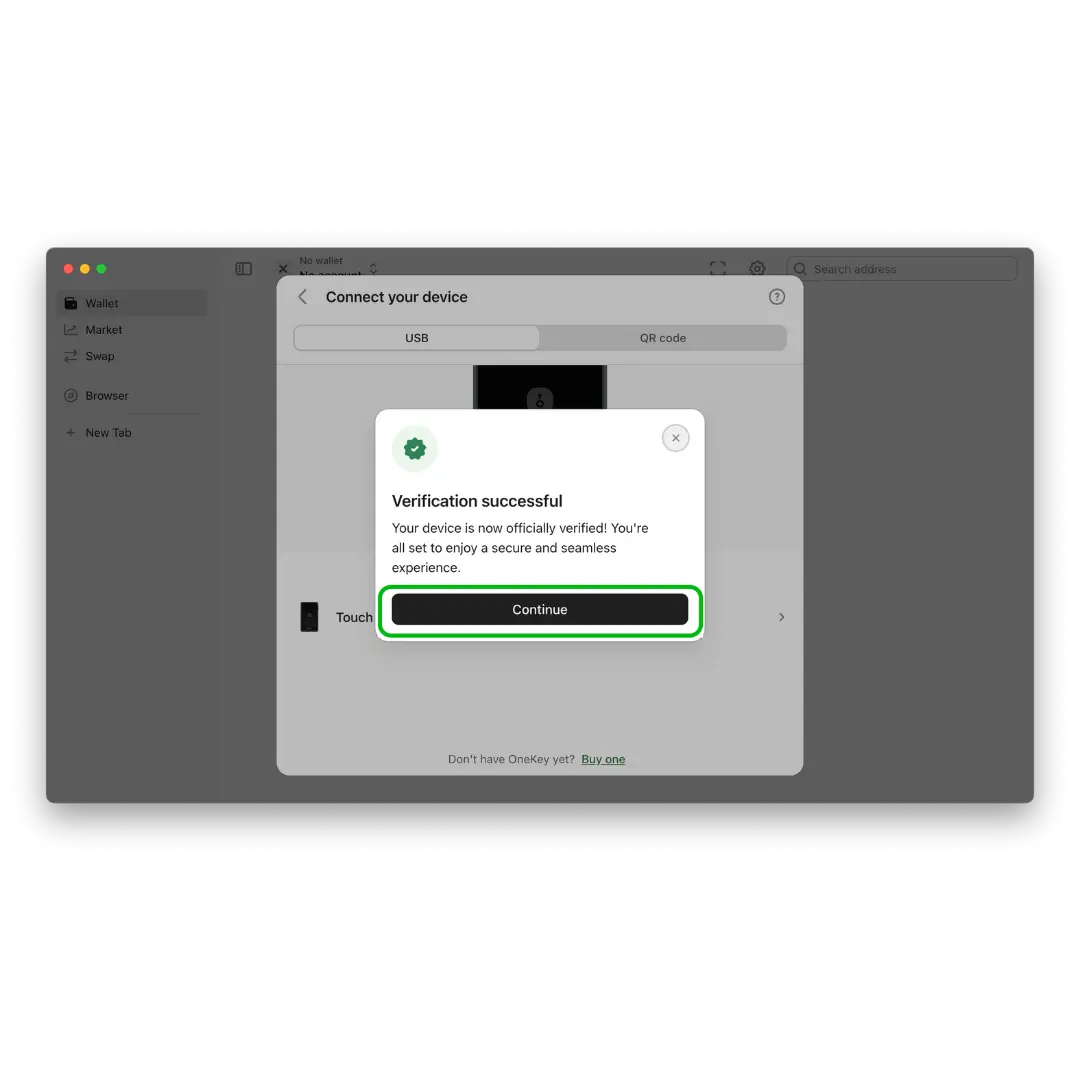
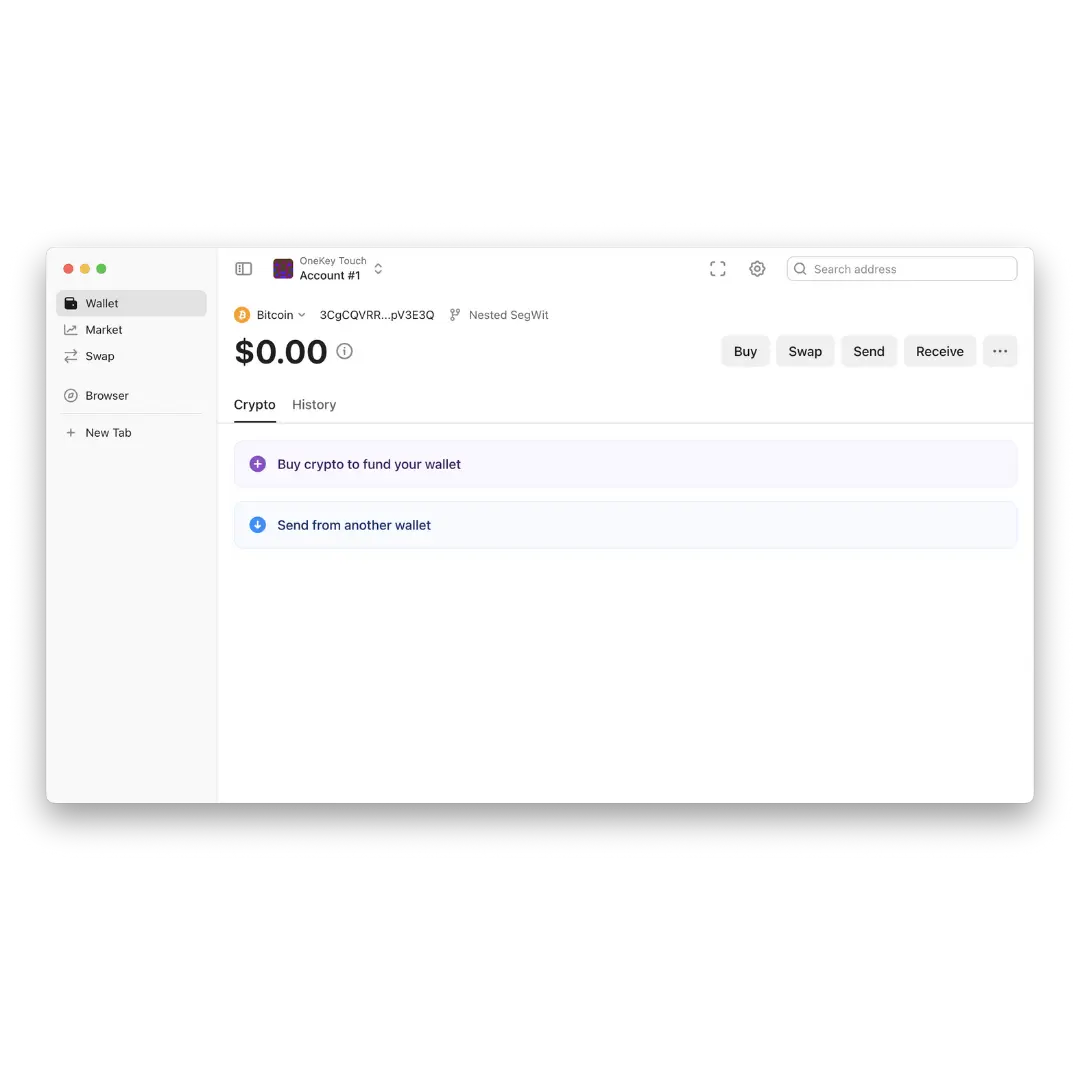
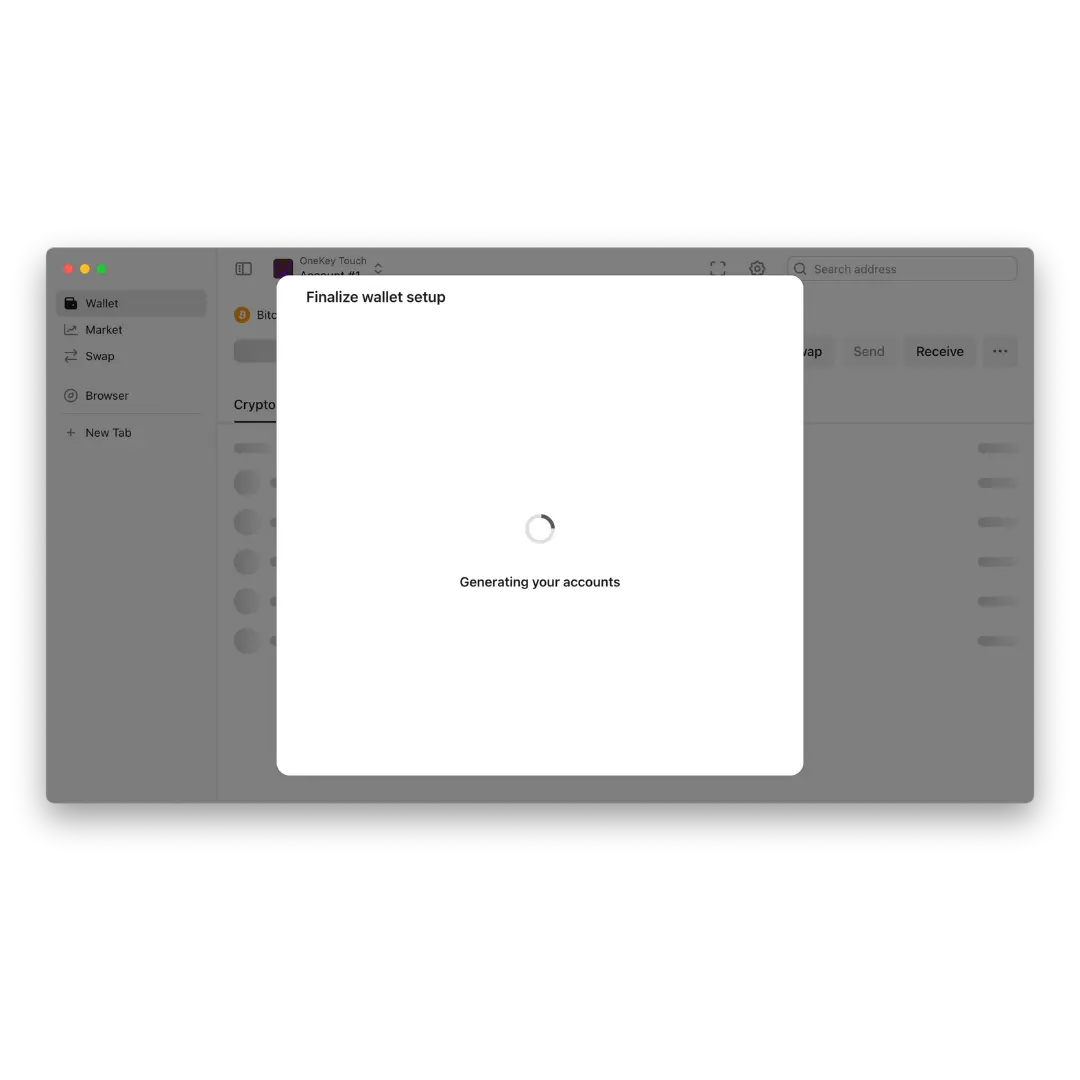
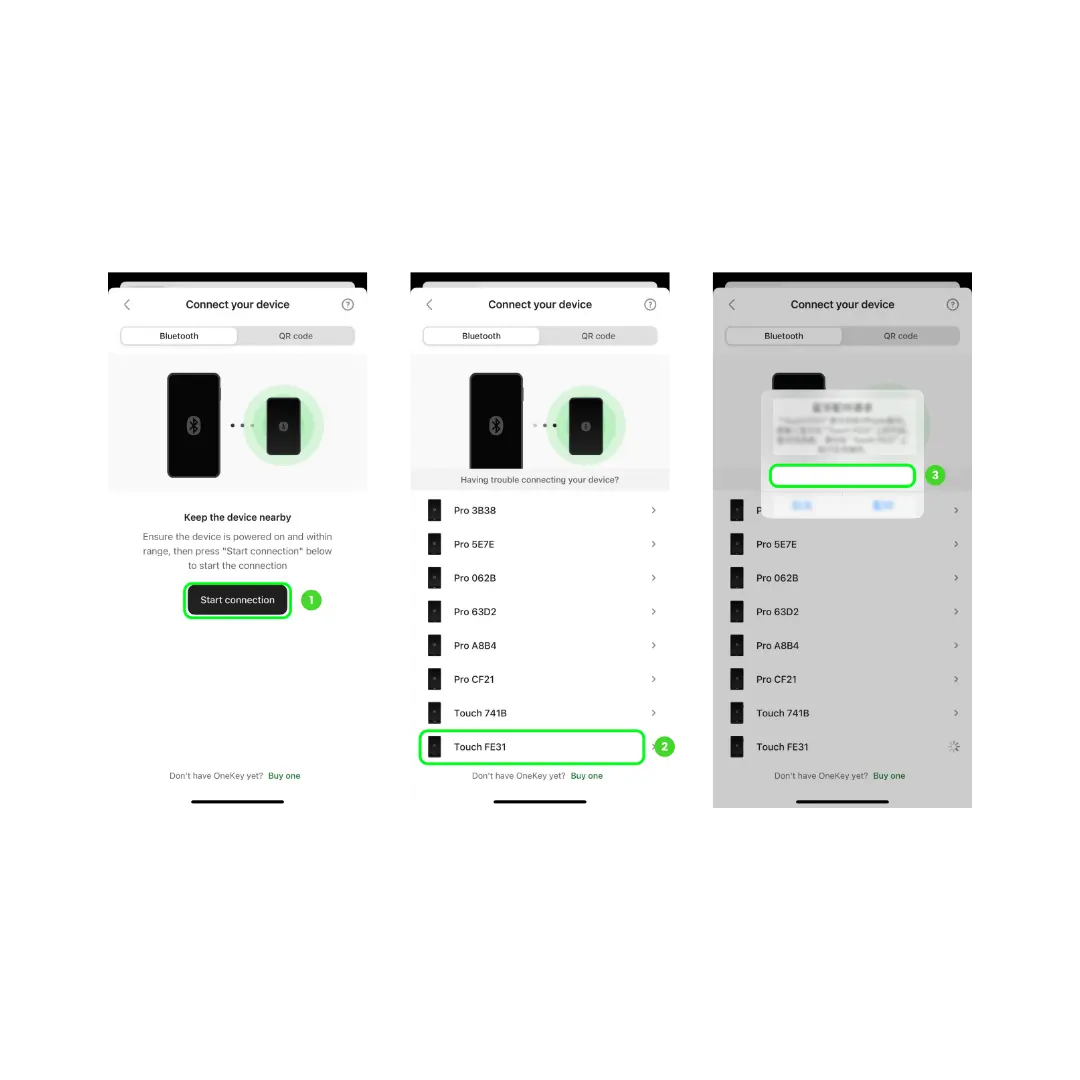
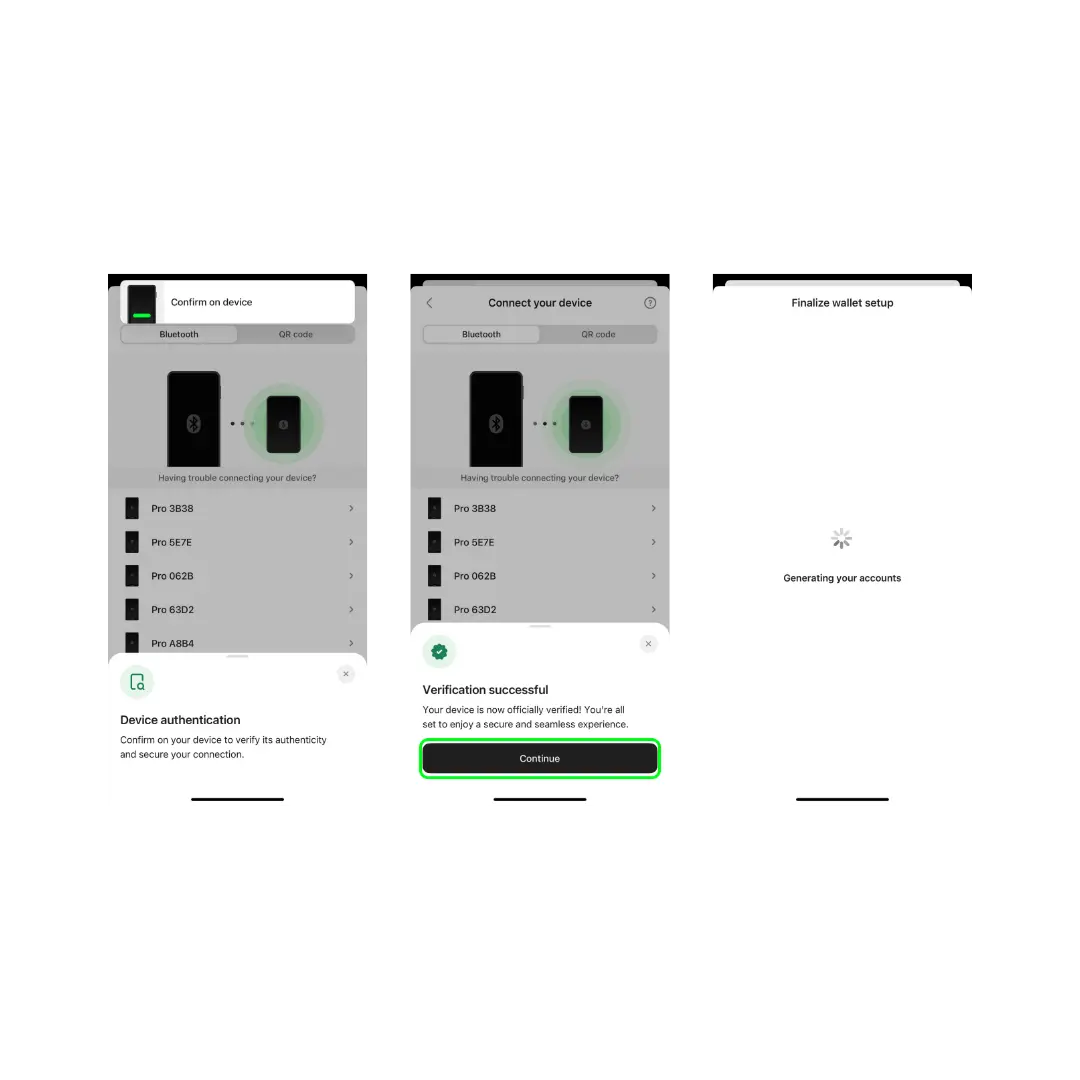
Step 3.1 Connect OneKey Pro to the OneKey App via Bluetooth
- Scan the QR code or go to 🔗 onekey.so/download to download and install the OneKey desktop app version compatible with your operating system (macOS, Windows, Linux).
- Connect your OneKey Pro to your computer using the USB cable.
- Launch the OneKey Desktop App and select "Connect Hardware Wallet".
- See detailed instructions for using the OneKey App here.
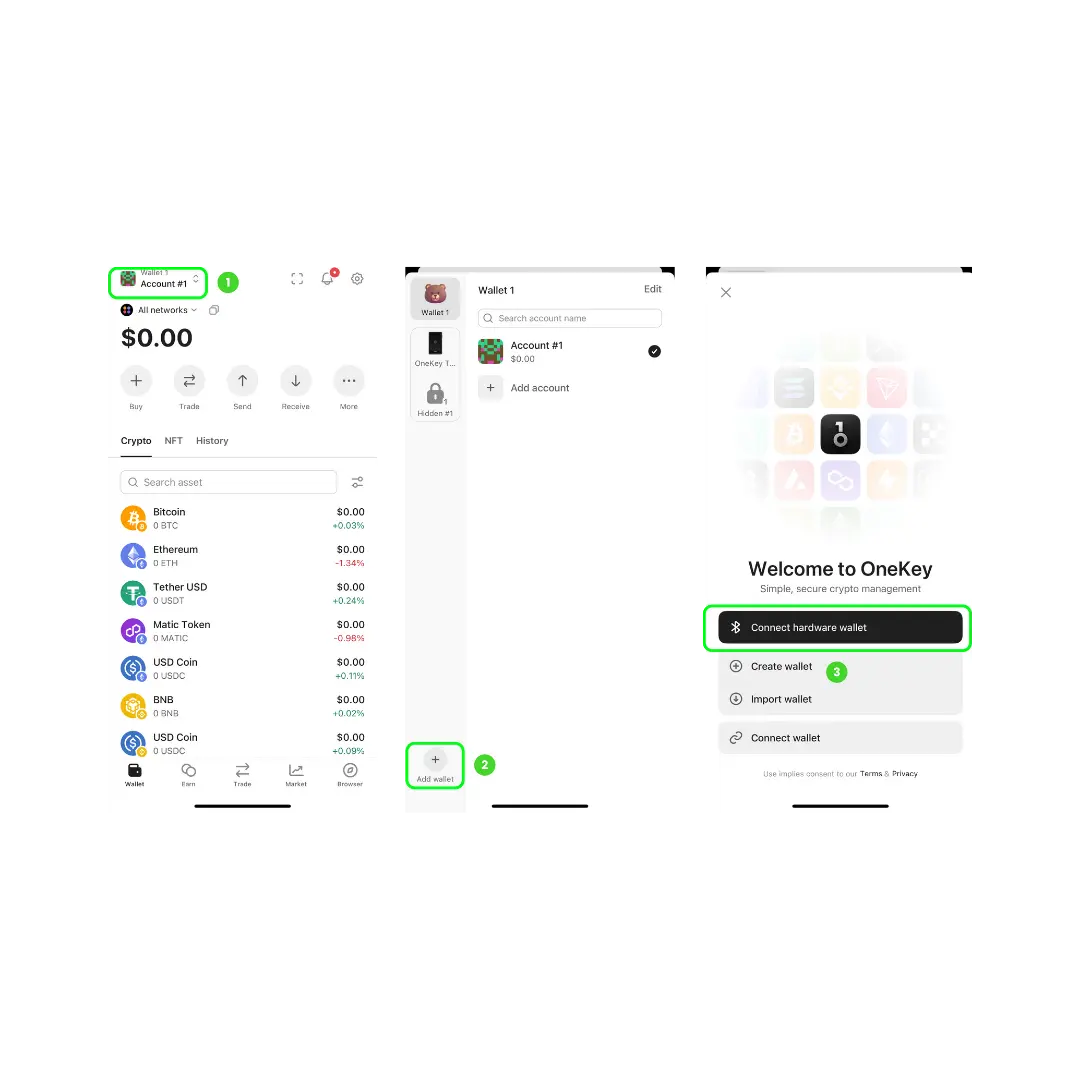
Step 4: Press to receive Bitcoin Address
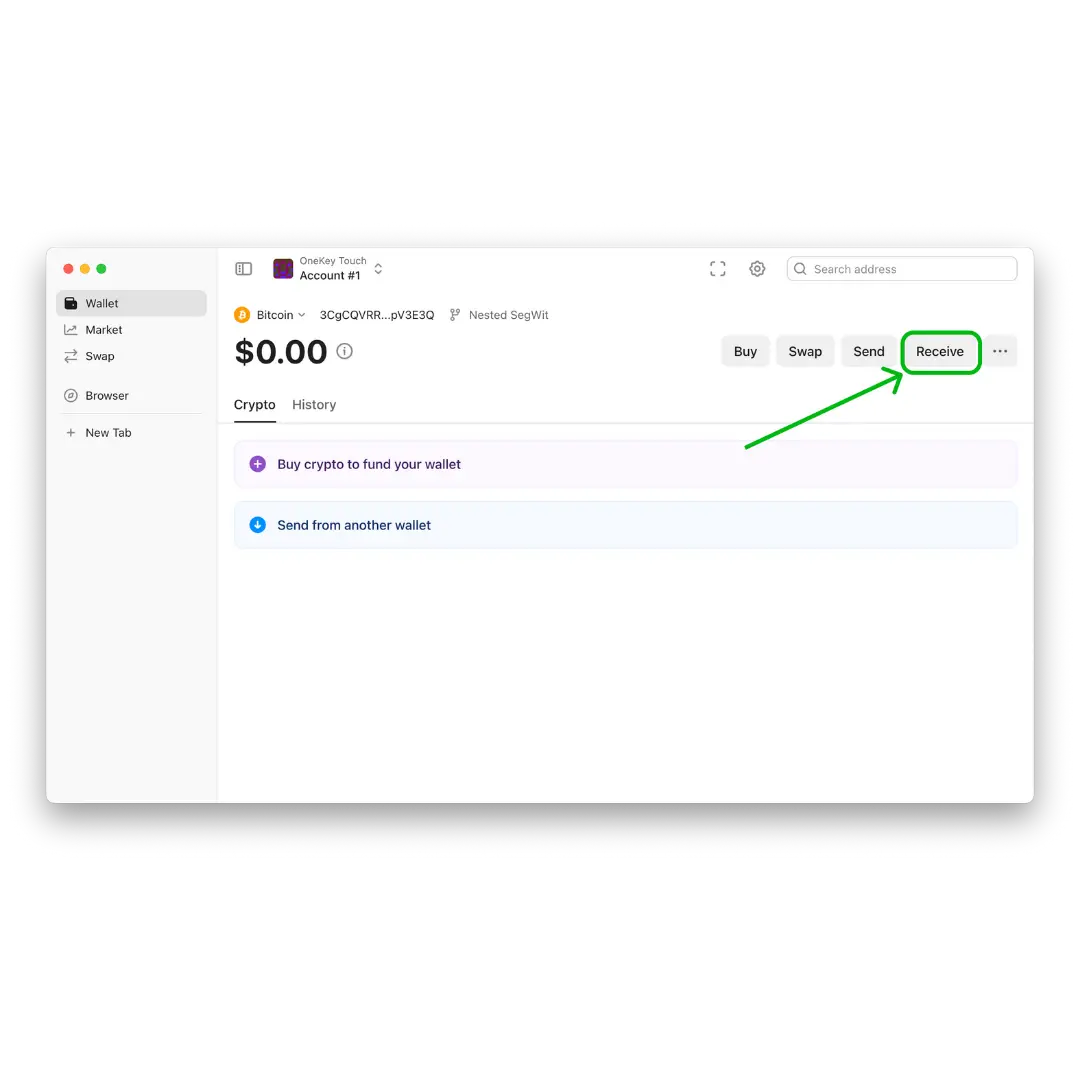
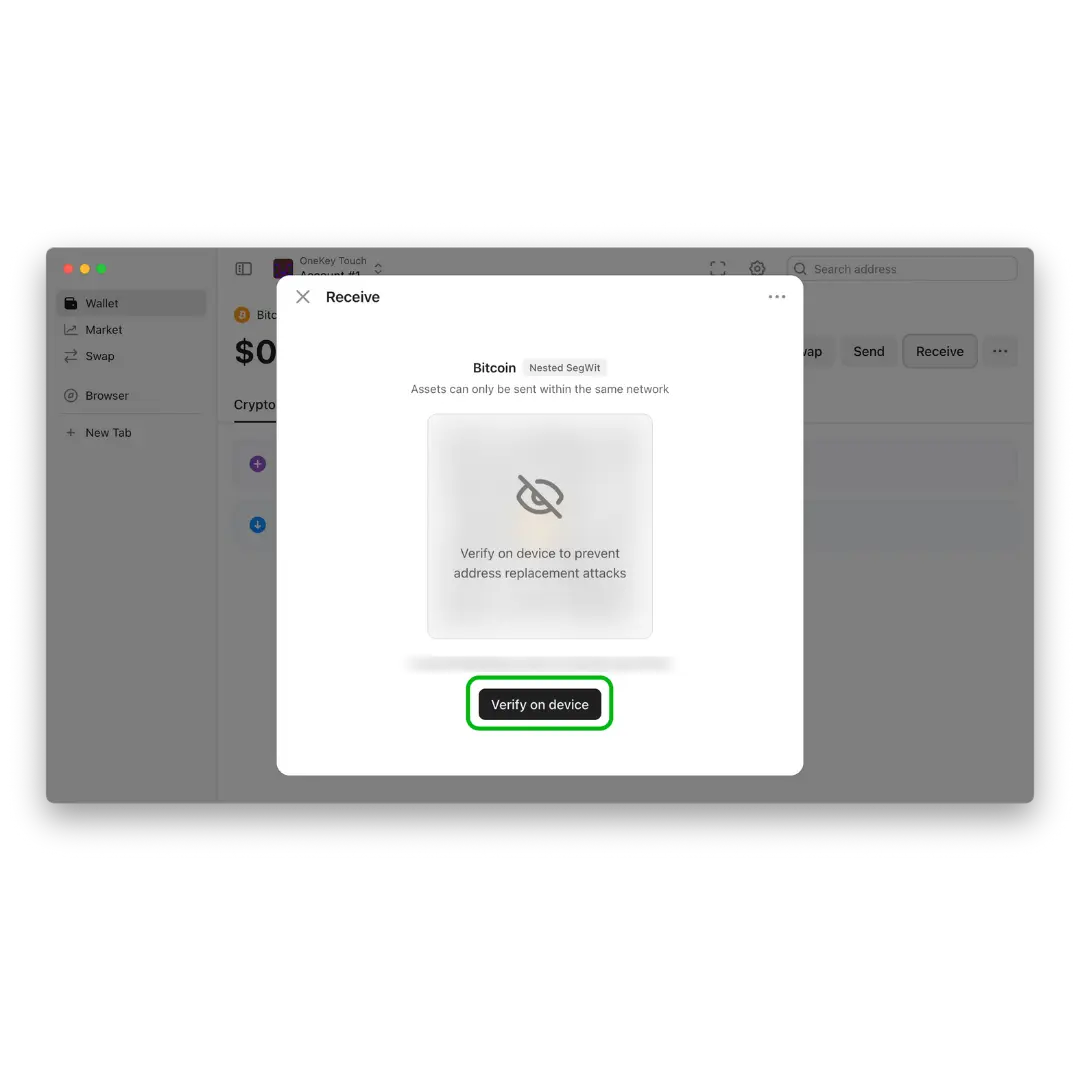
- Click "Receive" - "Check Address" in the OneKey desktop app.
- Confirm on your OneKey Pro device.
- Verify the address for the OneKey Pro wallet created in the previous step.
- Your OneKey Pro is now ready for use.
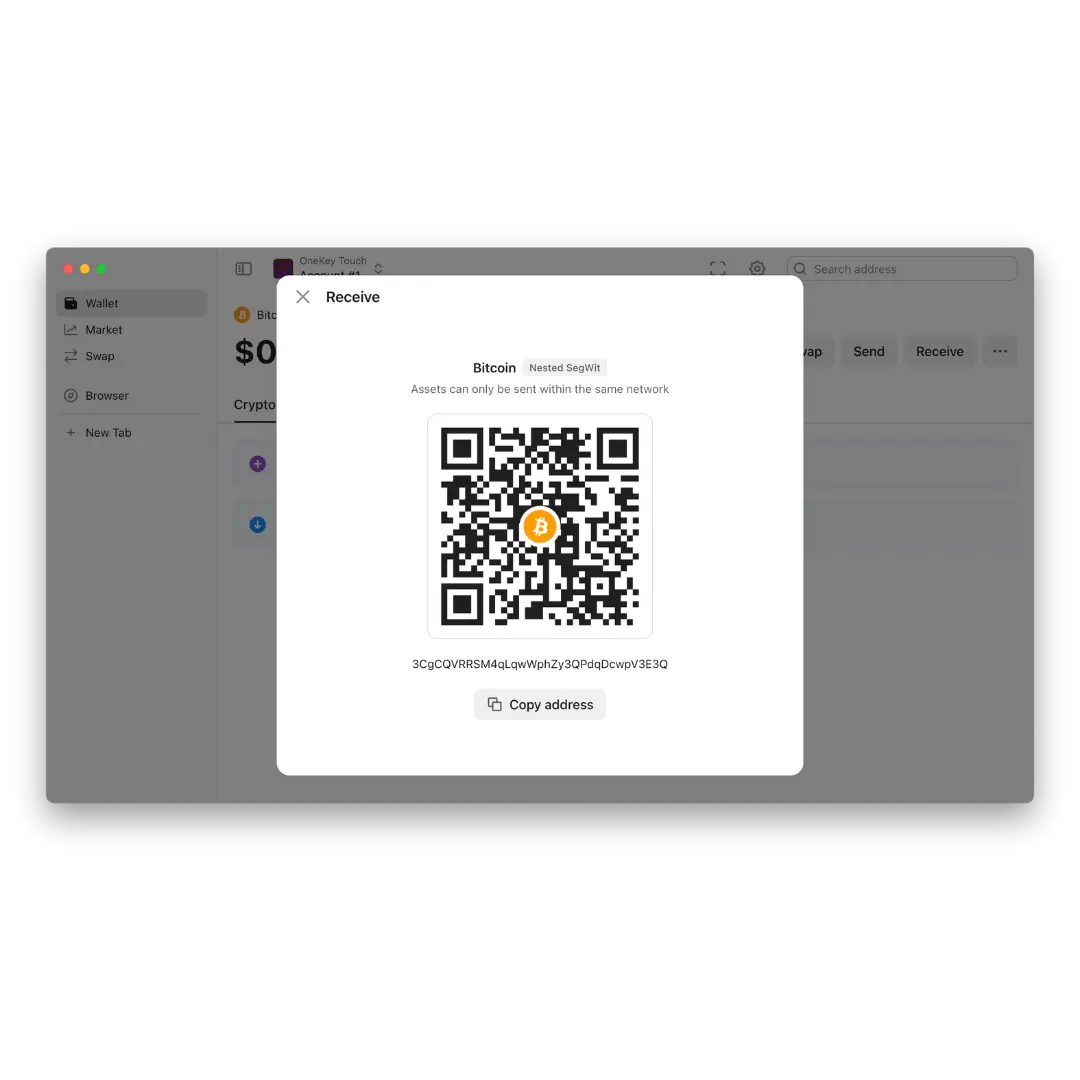
Step 4.1 Tap to get a Bitcoin Address on your smartphone
- Click on "Receive" - "Check Address" in the OneKey desktop application.
- Confirm on your OneKey Pro device.
- Verify the address for the OneKey Pro wallet created in the previous step.
- Your OneKey Pro is now ready for use.
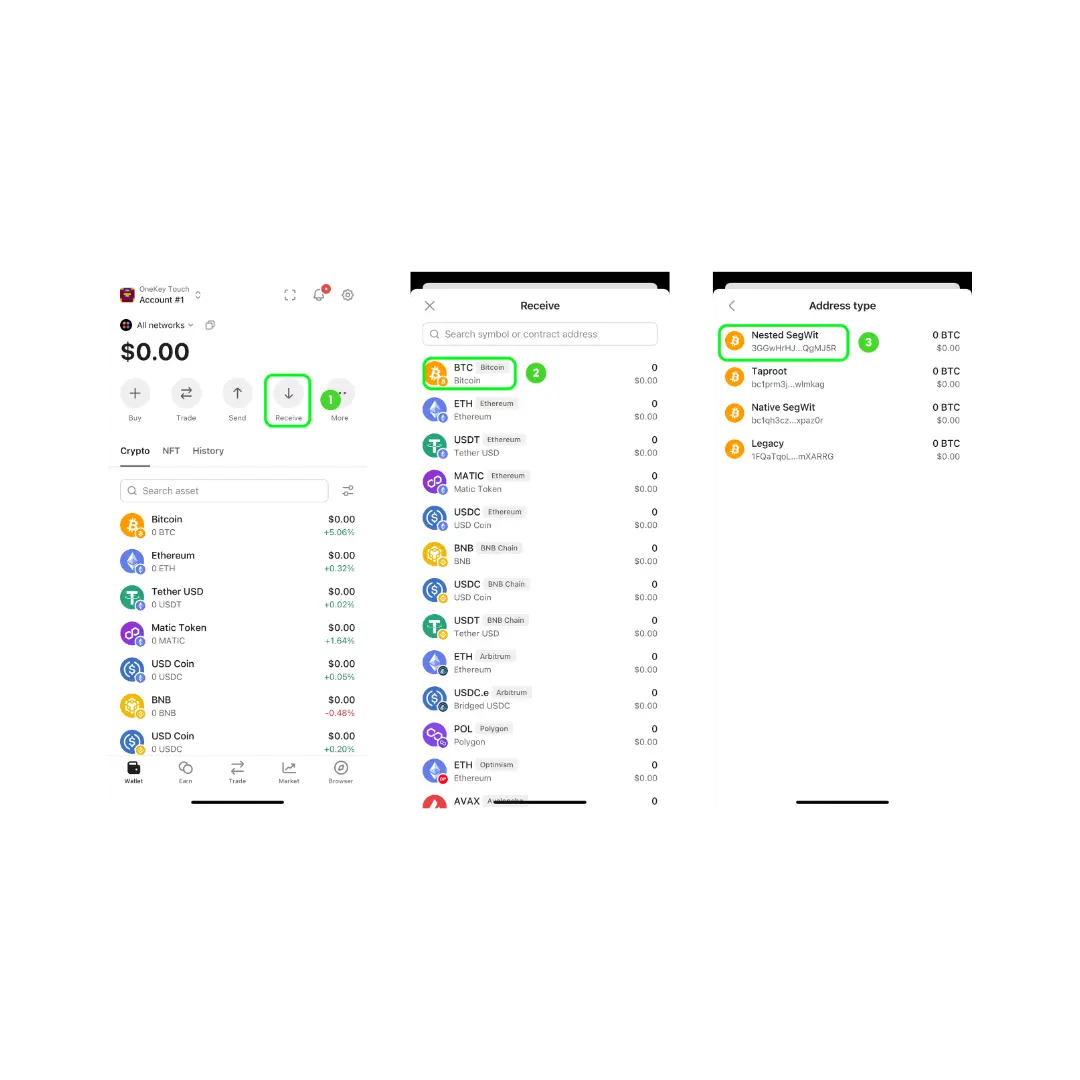
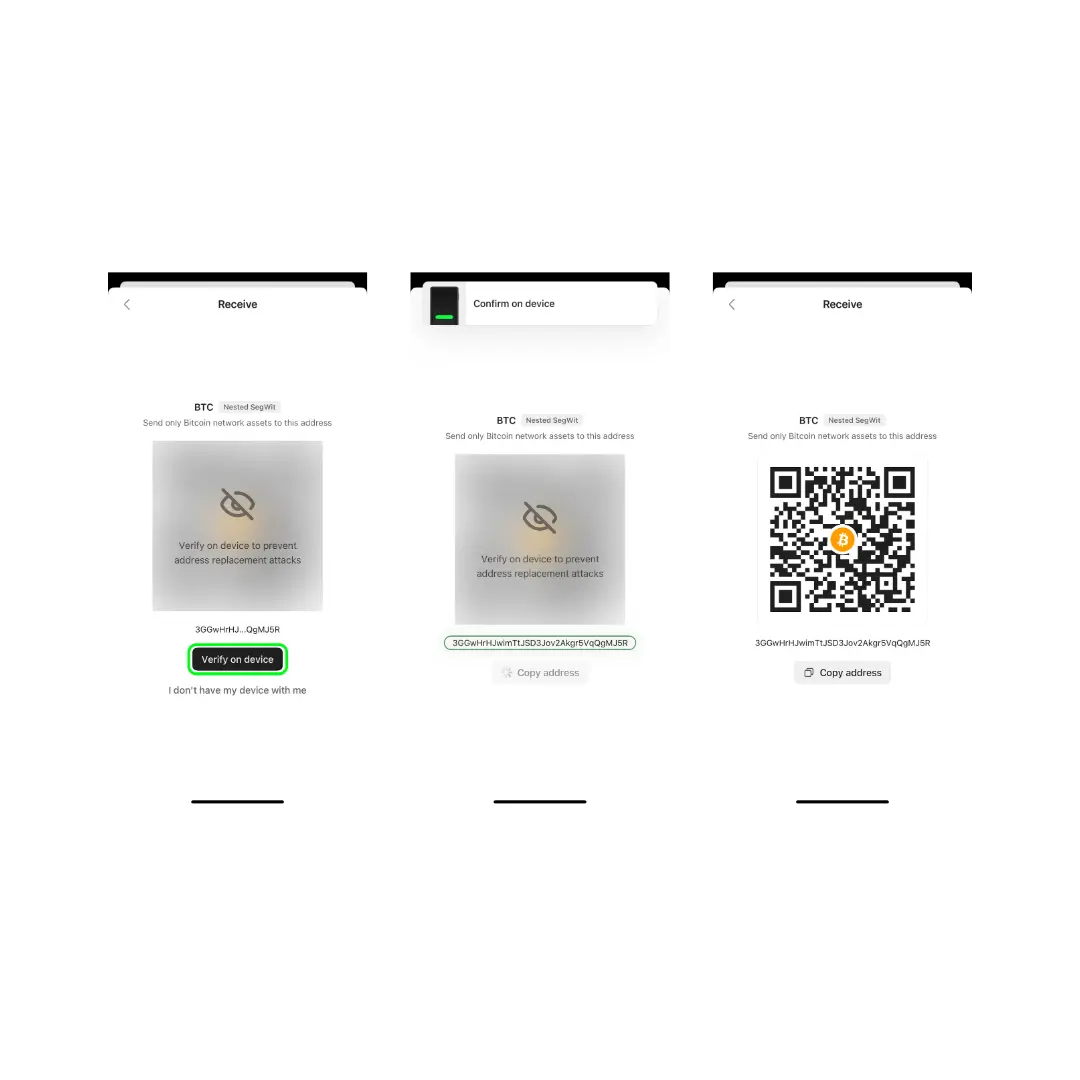
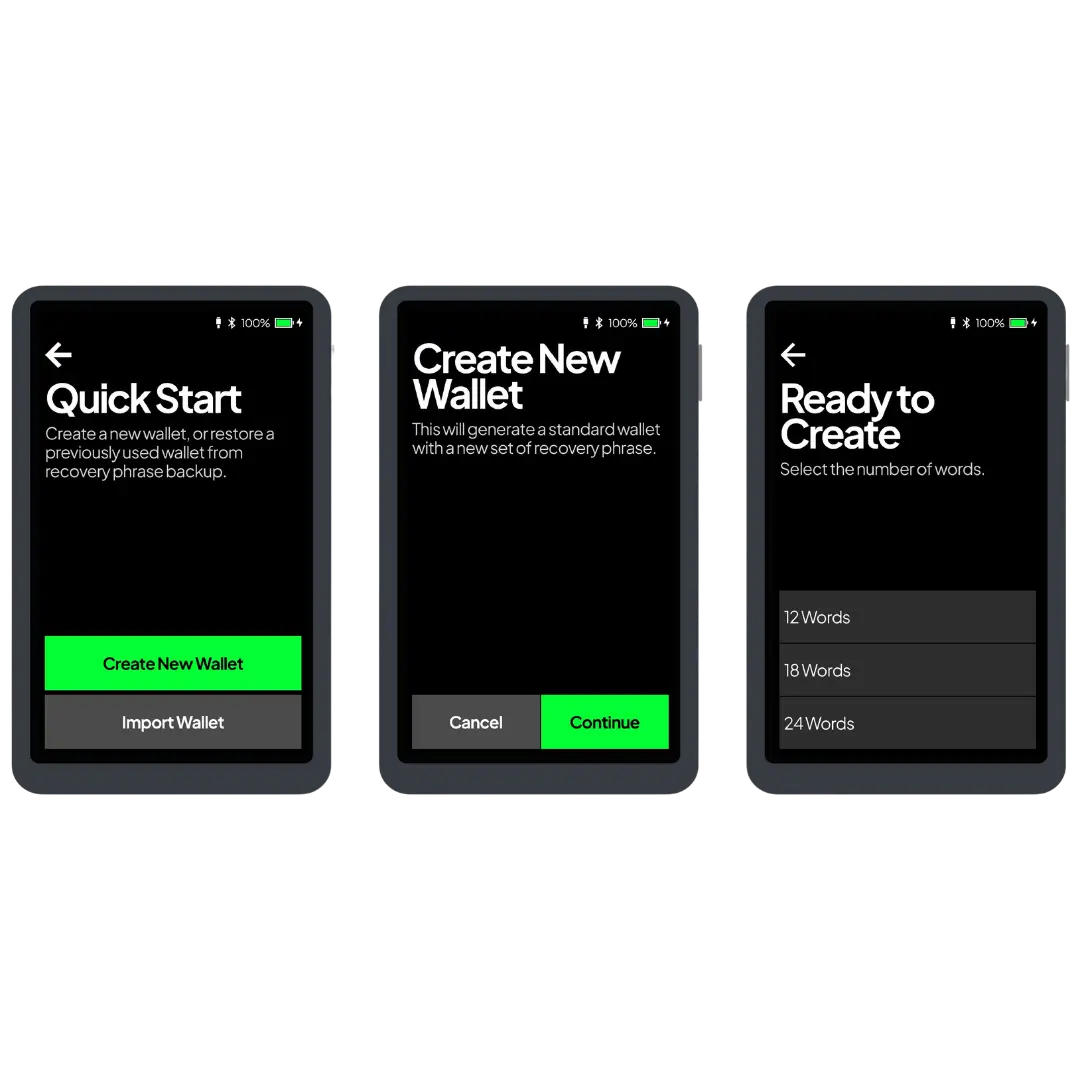
Image with text
Use this text to share information about your brand with your customers. Describe a product, share announcements, or welcome customers to your store.