


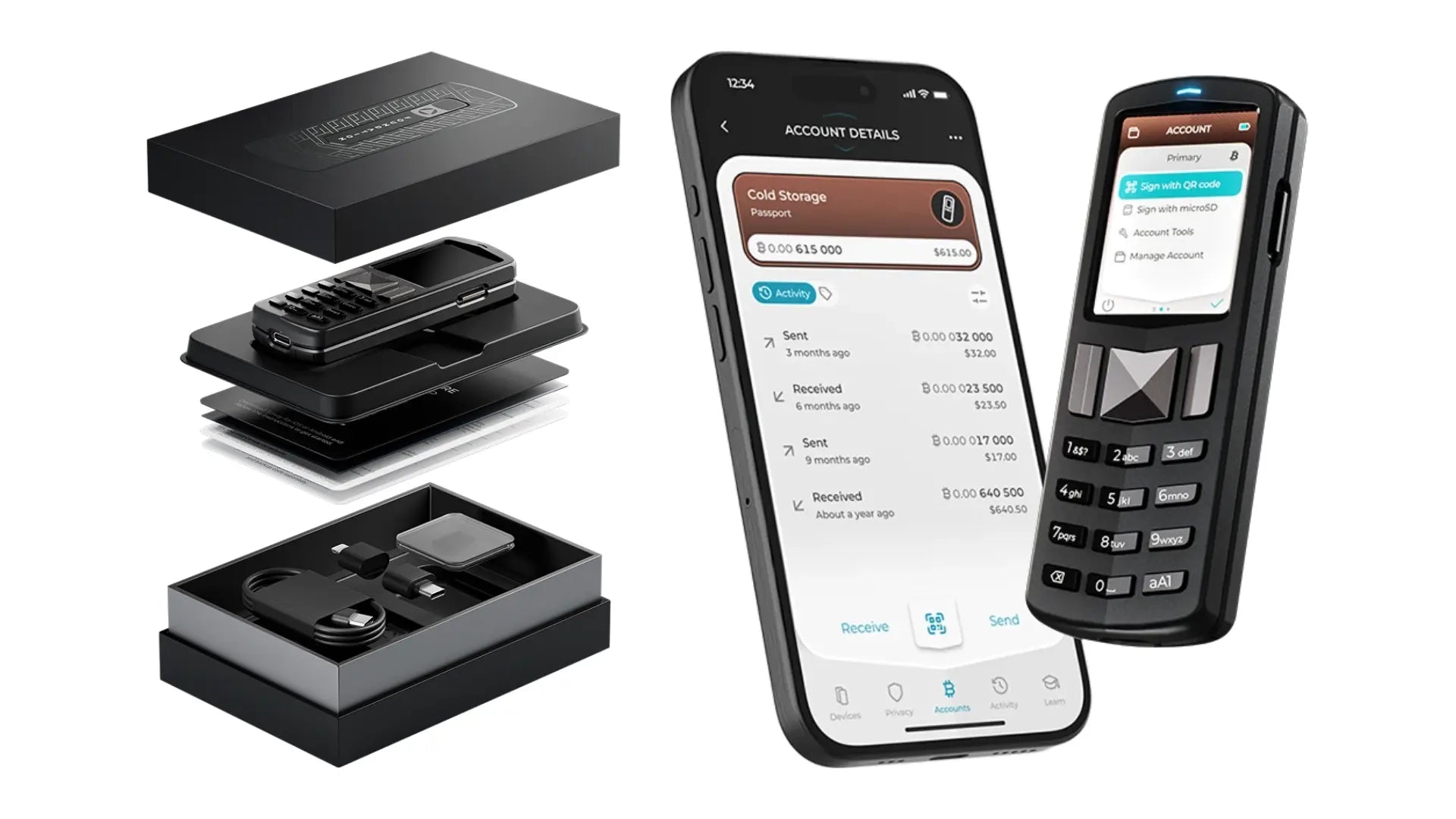
- 1. Unboxing the Foundation Passport: What's Included?
- 2. First-Time Setup Guide
- 2.1. Powering On and Setting a PIN
- 2.2. Backup Code
- 3. Connecting to the Envoy App
- 3.1. Preparing the Envoy App
- 3.2. Connecting via QR Code
- 4. Updating the Firmware (FW)
- 4.1. Downloading Firmware via the Envoy App
- 4.2. Transferring the file to a microSD card
- 4.3. Installing Firmware on Foundation Passport
- 📝 Summary and Additional Recommendations
Foundation Passport is a premium Hardware Wallet designed to keep your Bitcoin absolutely secure. With its air-gapped operation (no internet connection required) and management via the Envoy mobile application, this guide will walk you through everything from unboxing to use and firmware updates, step-by-step.
1. Unboxing the Foundation Passport: What's Included?
When you open the Foundation Passport box (Batch 2), you'll find these essential items and components:
- Foundation Passport Hardware Wallet device
- microSD card adapter - Type C/Lightning for connecting a microSD card to a smartphone
- USB-C charging cable
- microSD card (usually inside the device or included with the adapter)
- Envoy application download guide
- Paper for recording Backup code/Seed phrase

2. First-Time Setup Guide
2.1. Powering On and Setting a PIN
- Power on: Press the power button on the right side of the Foundation Passport.
- Set PIN: The system will prompt you to set a PIN (password) to unlock the device for future use.
- Create Seed: Follow the steps recommended by Foundation Passport to create your Seed Phrase, which is the master key to your Bitcoin.

2.2. Backup Code
Foundation Passport uses a Backup Code system, which encrypts your 24-word Seed Phrase into numbers for convenient storage.
- Record Backup Code: The system will display the Backup Code for you to write down on the provided Backup sheet. (Important: Keep this paper in the safest place possible!)
- Save Backup Code: The Backup Code will also be stored on the microSD card (when ready for use).
- Confirm Accuracy: Foundation Passport will ask you to enter the recorded Backup Code to confirm that it has been saved correctly.

💡 Note: This Backup Code is encrypted and cannot be directly recovered in other Hardware Wallets. However, you can view your 24-word Seed Phrase later for recovery by going to Settings -> Advances -> View Seed Words.
Once all steps are completed, your Foundation Passport is ready for connection!

3. Connecting to the Envoy App
The Envoy Application is a mobile application that helps you conveniently check your balance and create transactions using an air-gapped connection via QR code scanning.
3.1. Preparing the Envoy App
- Download App: Download and install the Envoy Application on your smartphone.
- Start in App:
- Open the Envoy app and select Set up Passport Device.
- Choose Set up new device (for new users) or Connect an existing Passport (for those who already have a Foundation Passport).
3.2. Connecting via QR Code
This step involves using Foundation Passport to scan a QR Code from your mobile and using your mobile to scan a QR Code from Foundation Passport.
- On Foundation Passport: Go to Primary -> Manage Account -> Connect Wallet -> Envoy (or other desired Software wallet to connect).
- Scan QR Code: Foundation Passport will display a camera for scanning the QR Code shown on the Envoy app on your mobile.
- Confirm Connection: Follow the steps specified by the Envoy Application until completion.

Now your Foundation Passport and Envoy Application are connected and ready to use!
4. Updating the Firmware (FW)
Keeping your firmware updated to the latest version is crucial for device security.
4.1. Downloading Firmware via the Envoy App
- Go to Device Menu: In the Envoy app, go to the home screen and select Device -> [Your Foundation Passport].
- Check FW: If a new version is available for download, click on the latest FW version.
- Download: Press Download Firmware.

4.2. Transferring the file to a microSD card
- Connect microSD: Connect your microSD card to your smartphone using the provided adapter.
- Move File: Move the downloaded Firmware file into a folder named PASSPORT-SD (create one if it doesn't exist).
- Remove: Remove the microSD card from your mobile and reinsert it into the Foundation Passport.
4.3. Installing Firmware on Foundation Passport
- Go to Update Menu: Go to Settings -> Firmware -> Update Firmware.
- Select Version: Choose the latest version you downloaded.
- Install: Press Install Firmware.


Once installed, your Foundation Passport will be updated to the latest version and ready for immediate use.
📝 Summary and Additional Recommendations
Foundation Passport is a Hardware Wallet ideal for those who want to take serious control of their Bitcoin (Self-custody), with these key features:
- 100% Air-gapped: No direct internet connection.
- Highly Secure: Secure backup system and updates that don't require an internet connection.
- Easy to Use: Conveniently manage your wallet via the Envoy app on your mobile (or other applications like Sparrow, Blue Wallet can also connect via QR Code).
The first-time use might seem to involve many steps, but every step is designed for the utmost security of your assets.


แชร์:
Blockstream Jade Classic Quickstart Guide
How to set up SeedQR on Blockstream Jade/Jade Plus