


Table of Contents
- How to use Unikey Security Key
- How to set up PIN and use with Gmail for MacOS
- How to set up PIN and use with Gmail for Windows
- How to Reset and Change Unikey PIN for Windows
- How to use Unikey with Binance
- Steps to set up Unikey with Binance
- Steps for identity verification before creating Passkeys
- Steps to create Passkeys
- How to add another Unikey for backup
- How to use Unikey with Bitkub
- How to use Unikey with Microsoft Account
- Steps to activate Security Key
- How to Sign in with Unikey
- How to use Unikey with GitHub
How to use Unikey Security Key
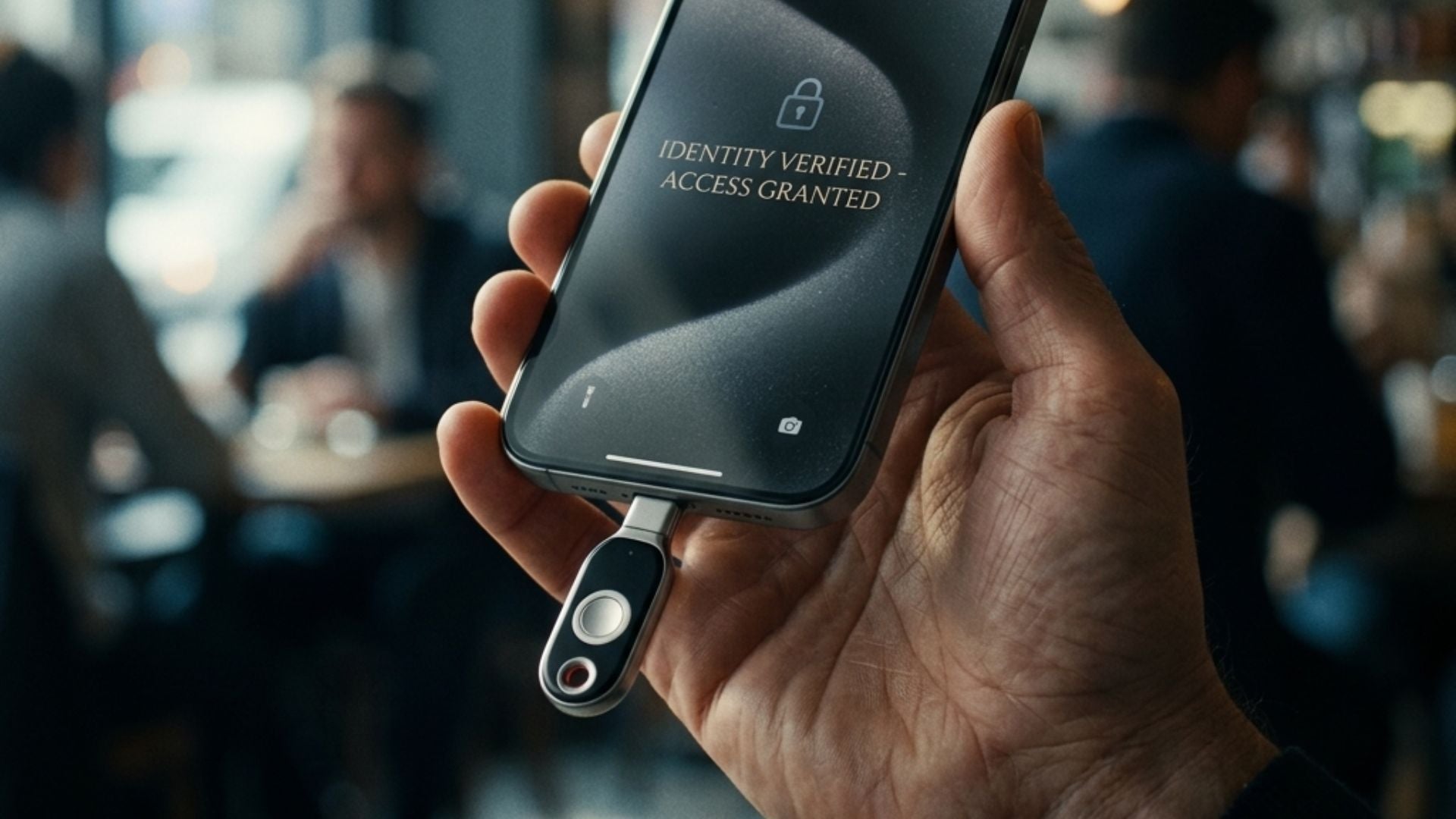
This guide provides instructions on how to set up Unikey, which helps securely authenticate access to various accounts. There is no need to configure the Unikey device itself; setup can be done directly on the desired platform.
How to set up PIN and use with Gmail for MacOS
- Go to Manage your Google Account
- Select the Privacy and security tab on the left
- Select Security


- Select Create a passkey
- Select Use another device


- Plug in or tap your Unikey to the device
- Select Create a passkey to create a Passkey
- Select Use another device to use Unikey with another device


- If you haven't set a PIN yet, the system will prompt you to set and confirm a PIN.
- Click Next to confirm the PIN settings
- Tap the Unikey until the green light stops flashing to activate the Unikey.


How to set up PIN and use with Gmail for Windows
- Go to Manage your Google Account
- Select the Privacy and security tab on the left
- Select Security

- Select Create a passkey
- Select Use another device
- Plug in or tap your Unikey to the device
- Select Create a passkey to create a Passkey
- Select Use another device to use Unikey with another device
- If you haven't set a PIN yet, the system will prompt you to set and confirm a PIN.
- Click Next to confirm the PIN settings
- Tap the Unikey until the green light stops flashing to activate the Unikey.
How to Reset and Change Unikey PIN for Windows
- Go to Windows, select Settings
- Select Accounts
- Select Sign-in options
- Select Security to set up PIN
- Select Manage to manage PIN
- Plug in and tap Unikey
- To reset PIN, click Reset
- To change PIN, click Change
- Select Proceed to Reset PIN
How to use Unikey with Binance
Steps to set up Unikey with Binance
- Once logged in, click Account on the left tab
- Select Security
- Select Passkeys, then click Manage
Steps for identity verification before creating Passkeys
- Click Add Passkey
- Select Verify through the previously set up Security options.
Steps to create Passkeys
- Click Add Passkey
- Select Security key
- 3. Select Save another way
- 4. Enter the previously set PIN and click Next
- 5. You can edit the Unikey name.
How to add another Unikey for backup
- Click Add Passkey
- Plug in the first Unikey that was set up to verify identity before adding a new Unikey.
- 3. Enter the set PIN
- 4. Click Add Passkey, then plug the new Unikey into the device and set it up following the same steps as the first one.
How to use Unikey with Bitkub
Steps to create a Passkey
- Click Create Passkey
- Click SMS OTP to confirm security check
- Click Request OTP
- Select USB security key and plug Unikey into the computer.
- Enter the correct PIN and tap Unikey until the green light is solid.
- You can edit the name and delete the Security key device.
How to use Unikey with Microsoft Account
Steps to activate Security key
- Log in, then select Security on the left tab.
- Click Add a new way to sign in or verify.
- Select Security key
- Plug Unikey into the device and enter the correct PIN.
How to Sign in with Unikey
- Select Sign-in options
- Select Security key
- Select USB security key
- Enter the correct PIN and click Next
How to use Unikey with GitHub
- Log in to GitHub
- Select Password and authentication on the left tab.
- Scroll down and select Security keys
- Click Register new security key
- Name the Security key and click Add
- Select USB security key
- Plug Unikey into the device you are using.
- Enter the correct PIN and click Next
แชร์:
OneKey Classic 1S Pure BTC-Only Hands-On Starter Guide
OneKey Classic 1S Pure Step-by-Step Getting Started Guide