


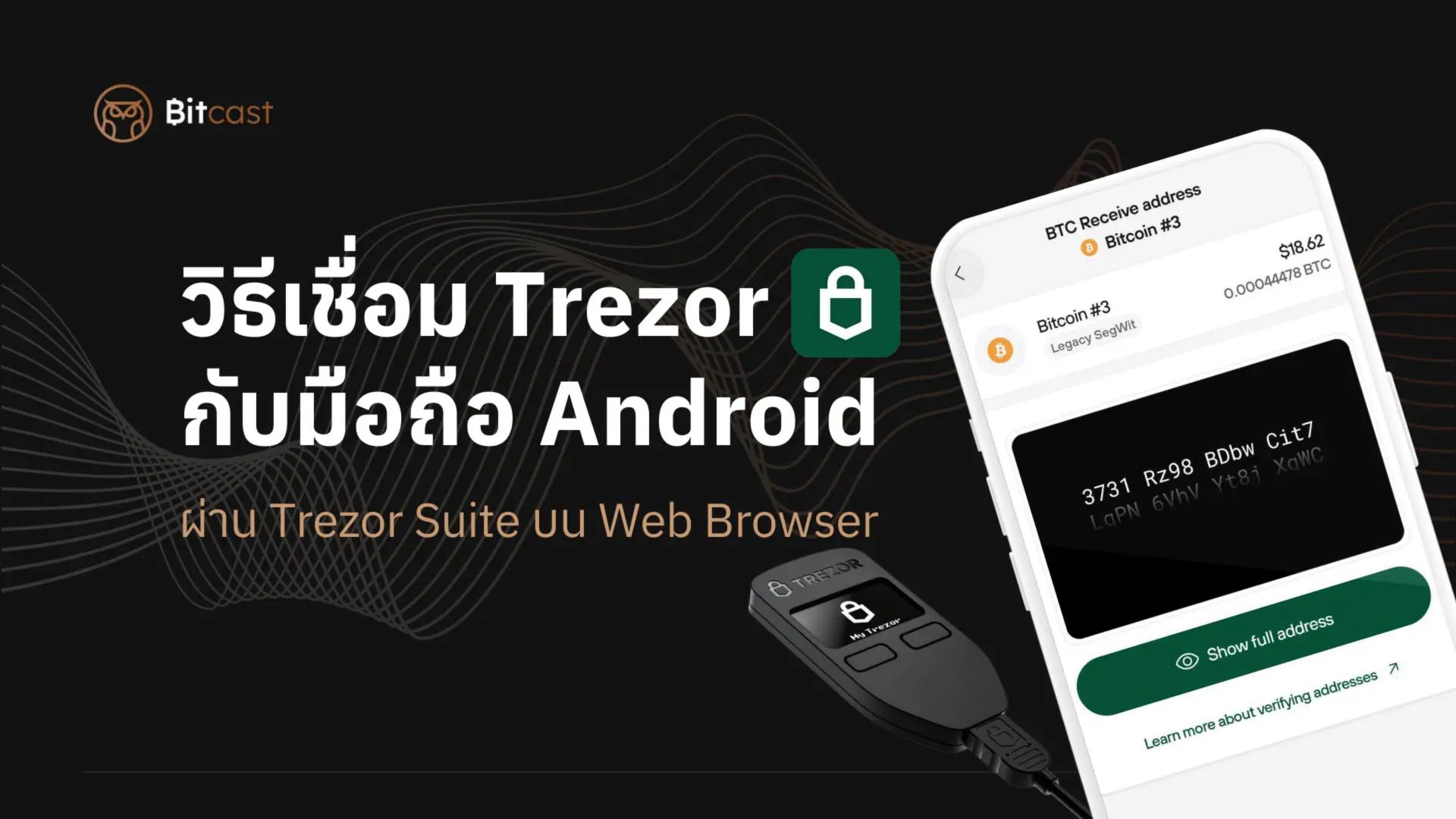
Trezor is a hardware wallet used to store the private keys of cryptocurrencies. This article describes how to set up your Trezor device via a web browser on an Android smartphone, without needing a computer or the Trezor Suite Lite app, which is the recommended method for initial setup.
Important: The initial Trezor setup must be done exclusively through the Chrome web browser. It cannot be performed using the Trezor Suite Lite app. Recommendation: Do not download the Trezor Suite Lite app until the wallet's initial setup is complete.
Detailed Steps
1. Setting up Trezor with an Android smartphone via web browser
Important: Only Google Chrome can be used for the initial setup. The Trezor Suite Lite app cannot be used to set up a new device.
What you need:
- Trezor device (Trezor Model One, Trezor Safe3, or Trezor Safe5)
- Android smartphone that supports USB OTG
- USB-C cable (depending on phone model)
- Latest version of Google Chrome
Installation Steps
1.1 Connect your Trezor device
- Connect your Trezor to your Android phone using a USB-C cable.
- Grant USB access when prompted.
- Open Google Chrome on your Android phone.
- Go to the Trezor Suite Web website.
- The system will automatically detect your Trezor device.

1.2 Set up a new device
If you have just purchased a new Trezor, you will need to set up the device as follows:
- On the Trezor Suite website, select "Set up a new device."
- Read and accept the terms and conditions.
- Give your Trezor device a name.
- Choose the PIN length (4-9 digits).
- Set the PIN by observing the scrambled number positions on your Trezor screen and selecting them on your phone.
- Confirm the PIN again.

1.3 Record your Recovery Seed
- Your Trezor device will display a 12 or 24-word recovery seed on its screen.
- Write these words down on paper with a pen (do NOT take photos or save them digitally under any circumstances).
- Clearly mark the sequence of each word on the paper (word 1, 2, 3...).
- Press confirm once you have written down all the words.

1.4 Confirm Recovery Seed
- The system will ask you to confirm the recovery seed you have written down.
- Enter the words prompted by the system in the correct order.
- Ensure you enter the words correctly.
-
Press confirm to complete the setup.
1.5 Set up additional security (Optional)
- You can enable a passphrase to increase security.
- Go to "Settings" > "Device" > "Passphrase."
- Read and understand the information about passphrases before enabling it.
- If you wish to use it, enable it and set a passphrase that is easy to remember (if forgotten, it cannot be recovered).

2. Using Trezor on an Android smartphone
2.1 Usage via Trezor Suite Lite App (after initial setup only)
Trezor Suite Lite is an official application from Trezor specifically for mobile use, but it cannot be used for the initial setup.
Limitations and Use of Trezor Suite Lite
- Important: The Trezor Suite Lite app cannot be used for new wallet setup - you must perform the initial setup via the Trezor Suite website on Chrome first.
- Download the Trezor Suite Lite app from the Google Play Store.
- Open the app and connect to your already set up Trezor device using an OTG or USB-C cable.
- Allow the app to access USB when prompted.
- The app will take you to the PIN entry screen.

Advantages of using Trezor Suite Lite
- Designed specifically for mobile, easier to use than the website.
- Optimal display for mobile screens.
- No need to open a web browser every time.
- More stable connection.
- Receives notifications for incoming and outgoing transactions.
Things to know before using Trezor Suite Lite
- Must set up a new device via the web first: The app does not support initial setup. You must use Chrome on your phone to set up the recovery seed and PIN first.
- Suitable for use only after setup: This app provides convenience for daily use, not for initial setup.
- Always update the app: To support the latest firmware and new features.
Features in Trezor Suite Lite
- Quickly view balances of various cryptocurrencies.
- Send and receive cryptocurrencies.
- Check transaction history.
- Manage multiple accounts and coins.
- Display total value in your selected local currency.
2.2 Access Wallet via Web
- Open Google Chrome on your Android phone.
- Go to Trezor Suite Web (suite.trezor.io).
- Connect your Trezor to your phone.
- Enter your PIN to unlock the device.
- If a passphrase is used, also enter the passphrase.
Adding Coins and Tokens
- After logging in, go to the "Accounts" tab.
- Click on the "Add account" button.
- Select the type of currency you wish to add (Bitcoin, Ethereum, etc.).
- Click the "Add" button to add the account.
- For Ethereum tokens, first add an Ethereum account, then transfer the desired tokens using the Eth Address. If tokens have already been transferred, they will appear. (You cannot add tokens yourself. If you need to add tokens, use a software wallet like Rabby Wallet or MetaMask for management instead.)
Receive and Send Digital Currencies
Receiving funds:
- Select the desired wallet.
- Tap "Receive."
- The system will display the address and QR code.
- Confirm the address on your Trezor device.
- Share this information with the person who wants to send you money.

Sending funds:
- Select the desired wallet.
- Tap "Send."
- Enter the destination address (type or scan QR code).
- Specify the amount to send.
- Choose the fee (Fast, Normal, Economy).
- Review the information and confirm the transaction.
- Confirm the transaction on your Trezor device as well.
3. Comparison between Trezor Suite Lite and web usage on mobile
|
Feature |
Trezor Suite Lite App |
Web Usage on Mobile |
|
New Device Setup |
Not supported (web only) |
Supported (recommended method) |
|
Installation |
Requires app download |
No installation, used via web browser |
|
Display |
Optimized for mobile screen |
May not be optimal for small screens |
|
Stability |
More stable |
May encounter issues when browser refreshes |
|
Notifications |
Available |
Not available |
|
Offline Usage |
App can be opened without internet |
Requires internet connection |
|
Firmware Updates |
Supported |
Supported |
|
New Device Setup |
Not supported |
Supported |
4. Limitations of mobile usage
- Display format: If used via web, the mobile screen may not display as completely as on a computer.
- Some features may have limited functionality: such as creating multi-signature accounts.
- Stability: OTG connection may not be as stable as connecting to a computer.
- NFT management: There may be limitations in viewing and managing NFTs.
5. Precautions and recommendations
- Keep recovery seed secure: Do not take photos or save it digitally. It should only be stored on paper or special metal plates.
- Do not share your PIN or recovery seed: Under no circumstances will the Trezor team ask for this information.
- Always update firmware: For security and new features.
- Test recovery: Test using your recovery seed to ensure it is recorded correctly.
- Beware of fake websites: Only use HTTPS and verify the URL is correct (suite.trezor.io).
- Back up your recovery seed in multiple copies: Store them in several locations to prevent loss, but ensure they are secure.
6. Basic troubleshooting steps
Device not detected:
- Check if the OTG or USB-C cable is working correctly.
- Try changing the USB port or connecting cable.
- Restart your phone and try again.
Trezor Suite Lite app freezes:
- Close the app and reopen it.
- Uninstall and reinstall the app.
- Check for app updates.
Firmware update failed:
- Check your internet connection.
- Ensure your Trezor device has sufficient battery (for models with batteries).
- Try using the cable that came with the device.
Forgot PIN:
- You must reset the device and recover it with your recovery seed.
- Go to "Forget device" and follow the recovery steps.
Summary
Important: Trezor setup must be done only via the Chrome web browser on an Android phone. It cannot be done through the Trezor Suite Lite app.
Steps for using Trezor without a computer:
- Initial setup: You must use the Chrome web browser on your phone to set up a new device. Go to suite.trezor.io to create your recovery seed and set your PIN.
- Daily Use: After setup is complete, you can choose to use the Trezor Suite Lite App for convenient daily use, or continue using the Chrome web browser.
The advantage is that both methods allow firmware updates directly on the mobile device. Although there are some limitations compared to computer usage, it is convenient for users who do not have a computer or wish to carry and use their hardware wallet while traveling.
The most crucial thing is to keep your recovery seed safe to ensure your digital assets are protected in the best possible way.
The most important thing is to keep your recovery seed safe. Whether you choose to use Trezor via the Trezor Suite Lite app or through a web browser, having a secure recovery seed ensures that your digital assets are protected in the best possible way.

แชร์:
Digital Asset Security Perspectives at KTAM Investment Forum 2025
Hardware Wallet Industry News Update: February 2025