


- Part 1: Preparing Your Hardware Wallet (Trezor)
- 1.1 Prepare Trezor and Create Address
- Part 2 (1): Initiating Transfer from InnovestX (General Steps)
- Navigate to the "Withdrawal" page on InnovestX
- Part 2 (2): Transferring Bitcoin (BTC)
- Filling in BTC Transfer Information on InnovestX
- Part 3: Verifying Success in Trezor Suite (Hardware Wallet)
Transferring coins from a Trezor (Hardware Wallet) back to InnovestX (Exchange) is typically done for the purpose of selling coins or exchanging them for other assets on the Exchange. This return transfer involves different steps than transferring from an Exchange, as you will need to "sign" the transaction via your Trezor device to confirm that only you are initiating the transfer.
This guide will walk you through each step in detail to ensure your coin transfer is accurate and secure.
Part 1: Preparing the Destination Address (from InnovestX)
First, you need to generate a Deposit Address on InnovestX to input into Trezor Suite.
1.1 Copy the BTC Deposit Address on InnovestX
- Open the InnovestX app.
- Go to the "Crypto" menu.
- Go to the "Digital Asset Account" menu to view the list of digital assets.
- Go to the "Deposit Coins" or "Deposit" menu.
- Select the desired coin to receive. In this case, choose "BTC".
- Verify the network, ensuring that the displayed network is "Bitcoin".
- Copy the Address: InnovestX will display a BTC Deposit Address for depositing coins (starting with bc1…). Copy this Address for later use, or save the QR Code image below for receiving coins.


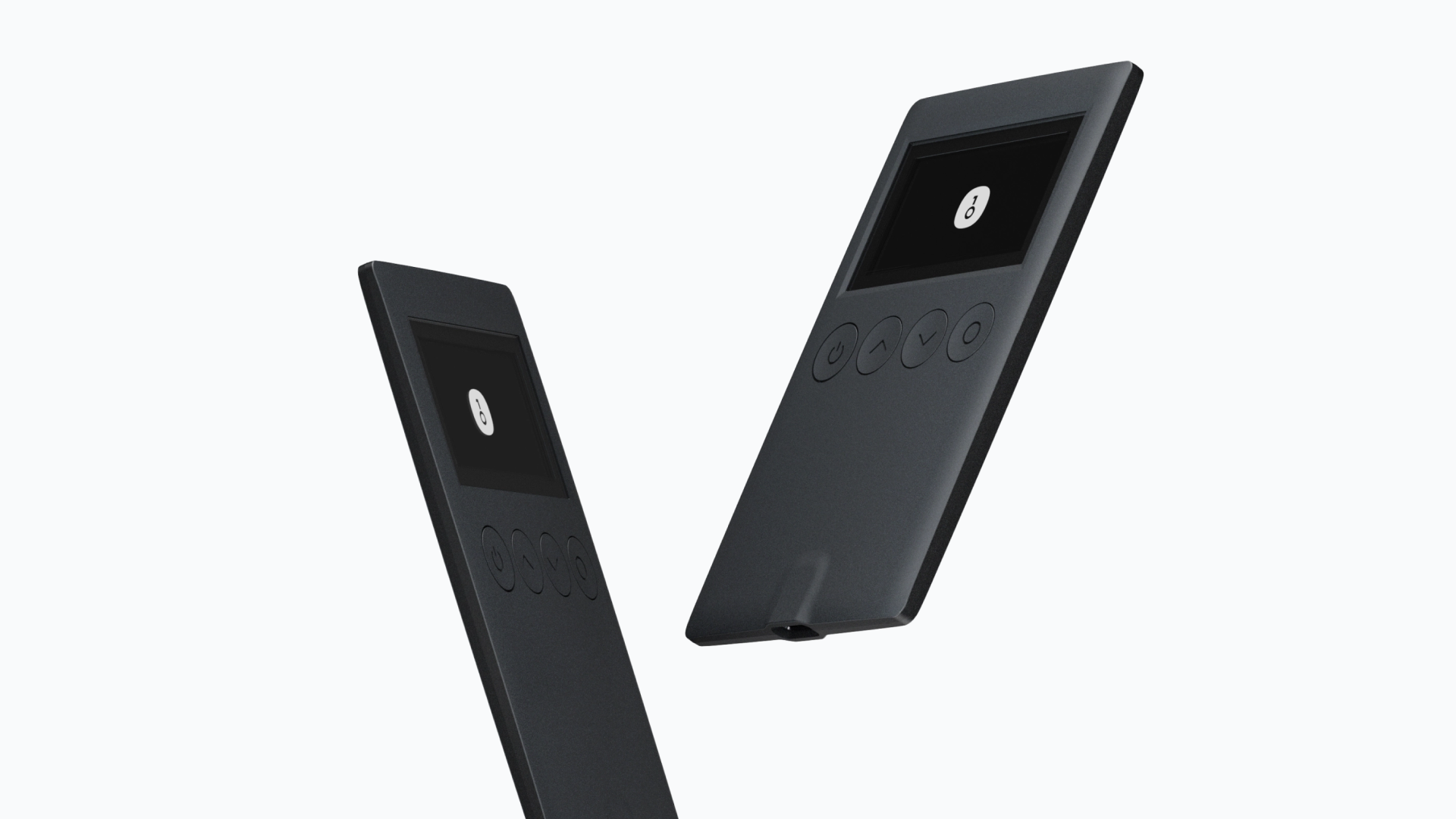
Part 2: Initiating Transfer from OneKey App
Now, we will access the OneKey App to initiate the coin transfer.
2.1 Go to the "Send" page on the OneKey App
- Connect your OneKey device to your mobile phone, open the OneKey App, and select the Bitcoin account where you hold your coins.
- Tap the "Send" tab on the screen.
2.2 Enter Transfer Details
- Recipient Address: Paste the BTC Address you copied from Binance TH.
- Caution: You should verify the first 5 and last 5 characters of the Address you copied to ensure it matches the Address from Binance TH to prevent errors.
- Amount: Enter the amount of BTC you wish to transfer back to Binance TH.
- Transaction Fee: Select your desired transaction fee (higher fee means faster transfer). The OneKey App will recommend an appropriate fee. Initially, a normal fee is recommended.
- Tap "Preview": Tap Preview to prepare the transaction.
2.3 Confirm details on OneKey
- (Very Important) You must ensure that the destination address on your OneKey device screen matches the BTC deposit address in Binance TH 100%. This is because if the address was changed by malware on your computer, you would catch it at this step, as the address on the OneKey device would still be the correct address.

- Confirm the amount of coins to send.
- Confirm the total amount of coins and the fee.
- Confirm the transaction signature.
2.4 Review final transaction details on OneKey App and send.
2.5 Verify success in OneKey App.
Once your transaction shows "Sent BTC" and "Confirmed", you have successfully completed the initial steps! Your digital assets have been sent to the Exchange.
You just need to check the status on Binance TH one last time to confirm the transfer and its completion.
Part 3: Verify Success on InnovestX
- Receive coins on InnovestX: Once the Bitcoin network confirms the transaction according to InnovestX's requirements (typically taking 10-30 minutes, depending on the transaction fee), the BTC coins will appear in your wallet on the InnovestX app.

You've done it! This proves that you truly control your coins and can securely transfer them to an Exchange.

แชร์:
Hands-on Guide! Securely Transferring BTC from OneKey to Binance TH
A step-by-step guide! Securely transfer BTC from OneKey to Bitkub