


- Why verify your Seed Phrase?
- ⚠️ Security Warning
- What you need to prepare
- Verification Steps
- Step 1 — Open Trezor Suite and connect your device
- Step 2 — Go to the Device Settings menu
- Step 3 — Read the warning and confirm to start
- Step 4 — Select the number of Seed Phrase words to verify
- Step 5 — Enter PIN to unlock
- Step 6 — Enter Seed Phrase words as prompted by the device
- Step 7 — View verification results
- Pre/Post Verification Checklist
- Additional Tips
Why verify your Seed Phrase?
A Seed Phrase (Recovery Seed) is a 12 or 24-word set generated when you first set up your Trezor. It acts as the "Master Key" for your entire wallet. If your device is lost or damaged, this Seed Phrase can be used to recover all your assets.
The Check Backup feature allows us to confirm that the written Seed Phrase matches the one in the Hardware Wallet. The entire process occurs only on the device and is not connected to the internet, so you can rest assured that your Hardware Wallet is not connected to the internet.
⚠️ Security Warning
- Perform the check in a private place. Do not let others see the screen or your Seed Phrase.
- Never type your Seed Phrase into any internet-connected device.
- Download Trezor Suite only from trezor.io.
What you need to prepare
- Trezor Hardware Wallet — Model T, Model One, Safe 3, or Safe 5
- Recovery Seed Card — The paper or device where you first recorded your Seed Phrase during setup.
- Trezor Suite — The latest Desktop application version.
- Trezor PIN — Used to unlock your device before starting.
Verification Steps
Step 1 — Open Trezor Suite and connect your device
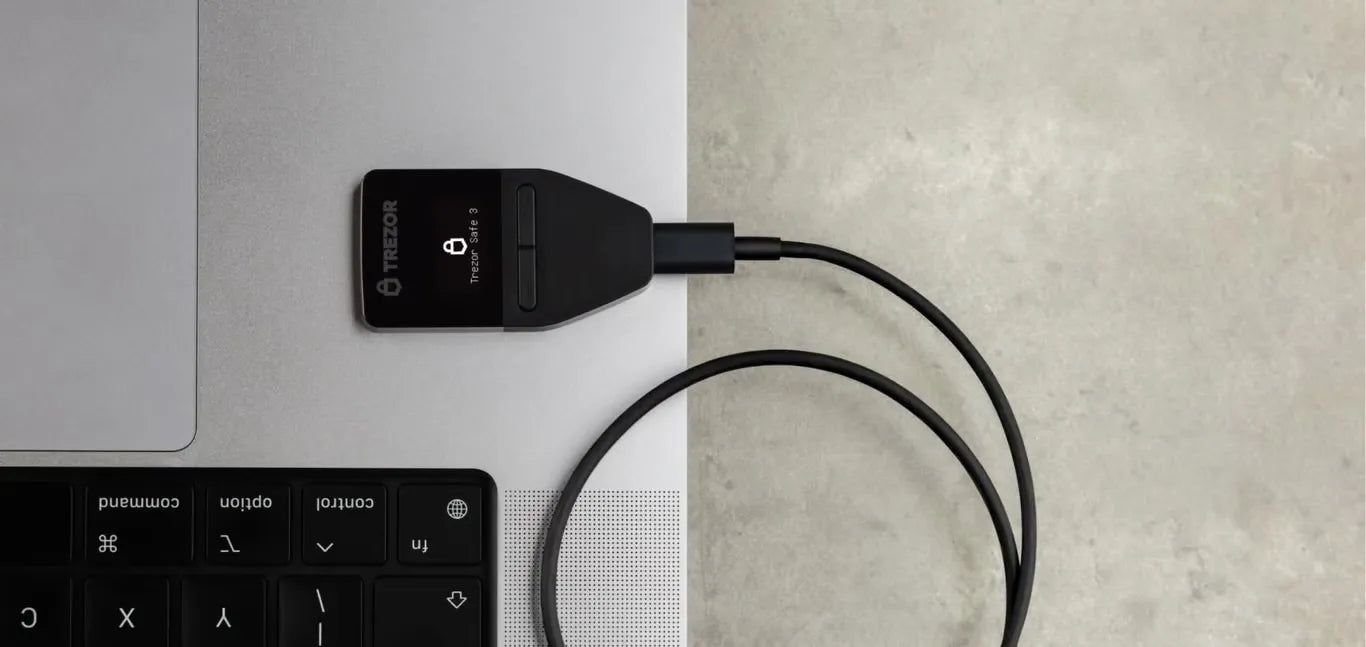
Open the Trezor Suite app on your computer, then plug your Trezor into the USB port. Make sure the Suite detects the device and displays the main Wallet screen.

Step 2 — Go to the Device Settings menu
Click on your device's name or the Device icon in the top left corner, select Settings, then scroll down to the Backup section and click the Check backup button.
Path: Trezor Suite → Settings → Device → Wallet Backup → Check

Step 3 — Read the warning and confirm to start
Trezor Suite will display a warning that this process will ask for Seed Phrase words on the device. The Trezor screen will show the message "I Understand this is a simulated check. It won’t affect my Trezor or funds." Check the box next to the message, then click the Start button and confirm on the device to proceed.

Step 4 — Select the number of Seed Phrase words to verify
The Trezor screen will display the number of Seed Phrase words you want to verify, ranging from 12, 18, 24 words, or SLIP-39 Seed Phrases with 20 words. Select the correct number of words according to your own.

Step 5 — Enter PIN to unlock
The Trezor screen will display a keypad for entering your PIN, with the number positions randomized each time. Press the buttons according to the positions shown on the device.

Step 6 — Enter Seed Phrase words as prompted by the device
Trezor will display the word number, such as "Word #1," on the screen and prompt you to click the letters of that word via Trezor Suite on your computer. To enter the word, select the first letters of the word you recorded, one by one, through the computer screen. The system will then auto-complete possible words. Select the matching word from the list until all words are entered.
For example, if the word you recorded is "sunset," press the keypad on the computer screen at the position with the abbreviated letters SU as shown in the image below.

Step 7 — View verification results
Once all words are entered, Trezor Suite will display the results.
- ✅ Backup is valid — The recorded Seed Phrase is correct and complete; it can be used to recover your wallet.
- ❌ Backup is invalid / Mismatch — The entered words do not match the seed on the device. Please check your recorded words again.
If the result is Invalid: Do not transfer any more assets to this wallet. Verify if the existing Seed Card is correct. If not, transfer all assets to an exchange first. It is crucial to transfer all assets out of this private key, as you will no longer be able to recover them because the recorded Seed Phrase does not match the one stored on the device.
Pre/Post Verification Checklist
- Do it in private — No cameras or others looking at the screen and Seed Card.
- Download Trezor Suite only from the official source trezor.io.
- Ensure the firmware is the latest version before verifying.
- The Seed Phrase must be recorded, in good condition, legible, and not faded.
- Do not take photos or type the Seed Phrase digitally under any circumstances.
- Verify regularly every 6–12 months.
Additional Tips
- Store your Seed in a secure place — Use a waterproof and fireproof safe or a metal backup plate instead of paper.
- Verify regularly — Perform a Check Backup every 6–12 months to ensure your Seed Card is still legible and correct.
- Passphrase Wallet — If a Passphrase is set, the original Seed Phrase remains correct, but the wallet you see will differ depending on the Passphrase used.
- Backup in multiple locations — Keep copies of your Seed in several secure places to protect against emergencies like fire or flood.
References from https://trezor.io/guides/backups-recovery/general-standards/check-wallet-backup-on-model-one

แชร์:
Trezor Suite Feature Summary Guide 2026
Easy-to-Understand Guide to Enabling Passphrase on Trezor