


Have you ever experienced this problem? You pick up your favorite Hardware Wallet, ready to make a transaction, but you can't remember the PIN. You try multiple times, and the delay starts getting longer and longer.
In the world of cryptocurrency and self-custody, security is paramount. If you forget your Trezor PIN, the bad news is that "there is no 'forgot password' button" or a system to send an email for a new password like you might be used to. But the good news is that "your assets are 100% safe" as long as you have something called a Seed Phrase.
This article will guide you through the process of factory resetting your Trezor Safe Series devices (models 3, 5, and 7) in a detailed and easy-to-understand manner.
Iron rule before starting: Make sure you have your "Seed Phrase"
Before you follow any of the steps below, please ask yourself this question and be sure of the answer:
"Do I have my Seed Phrase (12 or 24 recovery words) stored securely?"
Ultimate Caution: Resetting your Trezor PIN requires a factory reset, which means all data on the device, including your Private Key, will be completely erased. If you do not have a Seed Phrase, please stop all actions. If you factory reset your device without it, your assets will be lost forever and unrecoverable!
But if you have your Seed Phrase safely backed up, take a deep breath and let's start the reset process!
What happens if we keep guessing the PIN incorrectly?
Many people might think, "I'll just keep guessing the numbers, and eventually I'll get it right." However, Trezor has designed a robust brute-force attack prevention system with a two-step mechanism:
1. Exponential Backoff: Each incorrect entry forces you to wait "twice as long" before you can try again.
2. Auto-Wipe: This is where each model differs significantly according to the latest security policies.
Number of Incorrect Attempts |
Approximate Waiting Time |
Notes |
|---|---|---|
| 1st-5th attempts | 2 seconds - 32 seconds | |
| 6th-9th attempts | 1 minute - 8+ minutes | |
10th attempt |
🚨 Immediate Self-Wipe |
Trezor Safe 7 only will wipe immediately at this point |
10th-15th attempts |
17 minutes - 9 hours 6 minutes | Trezor Safe 3 and 5 only |
16th attempt |
🚨 Immediate Self-Wipe |
Trezor Safe 3 and 5 only |
Q: I'm stuck on the delay screen... Can I just go straight to a reset?
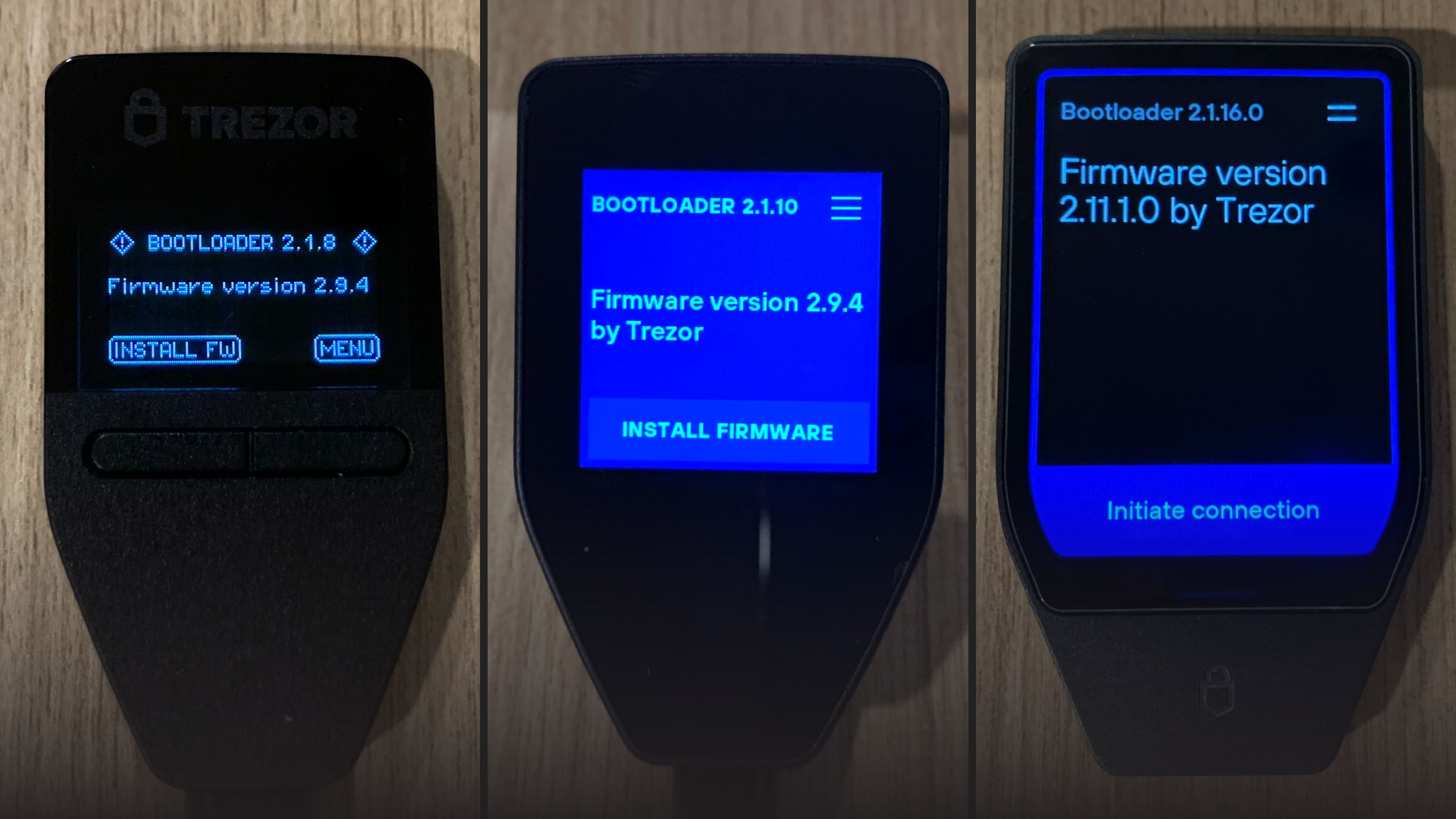
A: Yes, you can! You don't need to wait for the countdown to finish. A Factory Reset is done through Bootloader Mode (emergency mode), which operates separately from the normal system. Once you disconnect the USB cable or turn off the device and enter this mode according to the steps, the system will skip the countdown screen and allow you to initiate the factory reset immediately.
How to enter Bootloader Mode (by model)
Each model in the Trezor Safe series has different button and screen designs, so the method for entering emergency mode or Bootloader Mode varies slightly.
1. Trezor Safe 3 (Classic button model)

This model uses two physical buttons, making it easy and intuitive to enter reset mode.
- Step 1: Ensure the USB cable is disconnected from the device.
- Step 2: Press and hold the left button, then plug the USB cable into your computer/laptop. The Trezor screen will light up and enter the Bootloader page.

- Step 3: Press the right button to select Menu

- Step 4: Scroll to find the Factory reset option, then press both buttons simultaneously to confirm.

- Step 5: Press the right button again on RESET. The device will erase its data and return to factory settings.


2. Trezor Safe 5 (Touchscreen model)

With a design that eliminates physical buttons and focuses on the touchscreen, entering Bootloader mode requires your fingertips.
- Step 1: Make sure the USB cable is disconnected from the device.
- Step 2: Continuously swipe back and forth on the screen at the same time you plug the USB cable into your computer/laptop.

- Step 3: Once the screen enters Bootloader mode, tap the Menu icon (gear or lines) in the top right corner.

- Step 4: Tap to select Factory reset on the screen.

- Step 5: Confirm the command by tapping the RESET button. The device will immediately begin the factory reset process.


3. Trezor Safe 7 (Touchscreen + Power Button model)

This larger model comes with a side power button, making it even easier to turn on/off and access various modes.
- Step 1: Make sure the device is "off" (screen completely dark).
- Step 2: Press and hold the Power button until the screen turns blue, which indicates the Bootloader window.

- Step 3: Plug in the USB cable to connect the device to a computer/laptop (if the device's battery is dead).
- Step 4: Tap the Menu icon in the upper right corner of the screen.

- Step 5: Select Factory reset and confirm by pressing Reset


- Step 6: Once the system finishes wiping the data and a success message appears, select Restart to reboot the device.

Conclusion
A Hardware Wallet is a shield, but the Seed Phrase is the heart.
Forgetting your PIN can initially cause panic and frustration. However, from another perspective, this incident serves as excellent proof of the "high level of security" of Trezor devices, designed to protect your assets rigorously, even preventing repeated password guesses by forcing a factory reset.
The most important lesson this teaches us is that in the world of Self-Custody, a Hardware Wallet is merely a "tool" that can always be wiped, repaired, or replaced.
However, the Seed Phrase is the true and irreplaceable ownership. As long as you prioritize writing down and securely storing this recovery phrase offline, you can hold your assets with peace of mind.
If you are looking for more stable and secure devices to record and store your Seed Phrase, you can find more details below:

แชร์:
Get to know Trezor, the origin of hardware wallets, and why investors worldwide choose to use them.
How do big banks and financial funds with 1,000+ Bitcoin store their Bitcoin?