


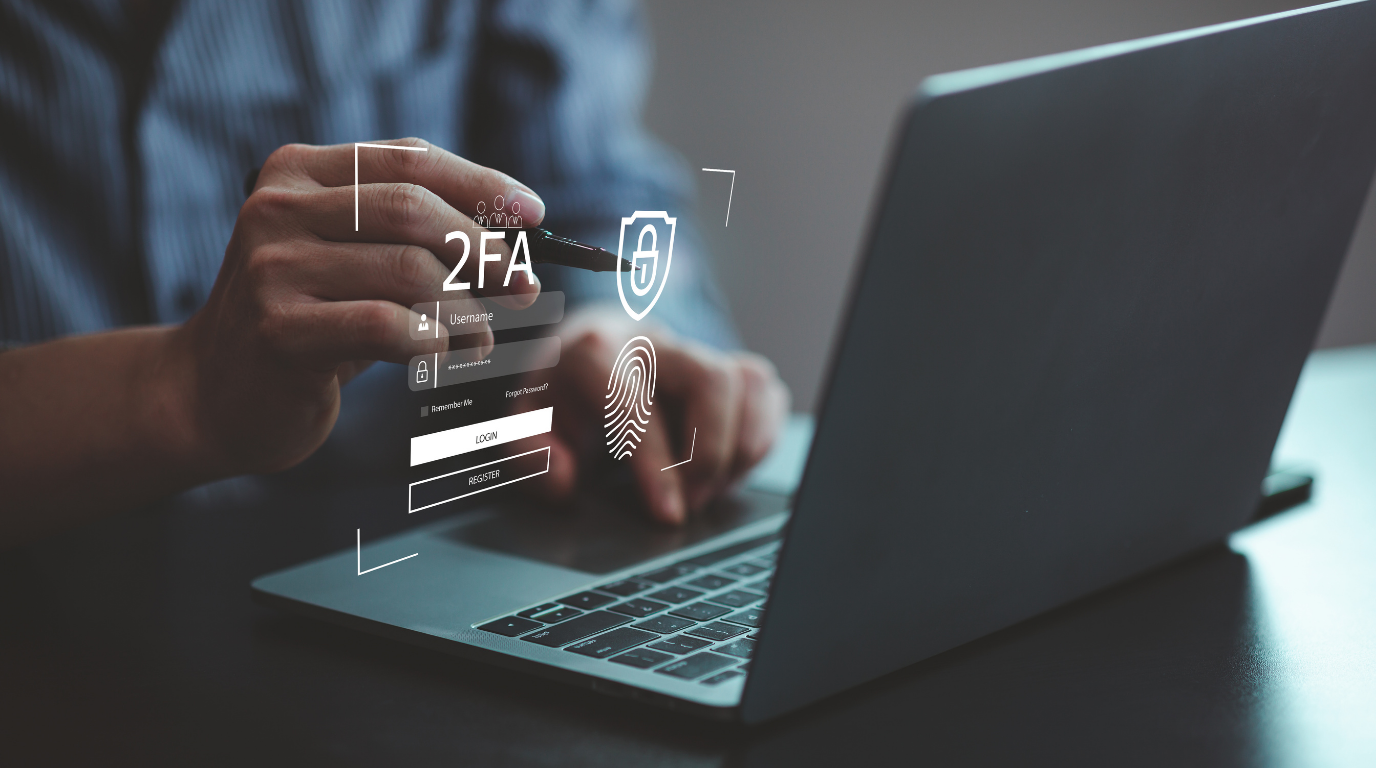
- What is 2FA (Two-Factor Authentication) and how does it work?
- Understanding Each Type of 2FA: Principles, Pros, and Cons
- 1. SMS OTP and Email OTP (Sending codes via network/server)
- 2. Software Authenticator (TOTP) e.g., Google Authenticator, Authy, Aegis
- 3. Hardware Security Key & Hardware Wallet (FIDO2 / U2F)
- 4. Passkeys (New Generation FIDO Standard)
- Comparison Table: Security, Convenience, and Risks
- Why Security and Crypto Enthusiasts Should Disable Cloud Sync in Google Authenticator
- How to Check the Cloud Sync Status (Cloud Symbol)
- How to Disable Cloud Sync in Google Authenticator (Step-by-Step)
- Important Precautions and How to Prevent Code Loss
- Part 1: Backup via "Destination Website" e.g., Exchange, Social Media, or Google (during initial setup)
- Part 2: Backup via the Google Authenticator app's functions (if not noted during initial setup)
- Alternative: Switch to an App with Built-in Encrypted Backup
- Summary
- Frequently Asked Questions (FAQ)
In an era where personal data and digital assets hold immense value, relying solely on a "password" is akin to locking the front door with a simple padlock while leaving the windows wide open. No matter how long or complex a password is, it's always vulnerable to data breaches, infostealer malware, or phishing scams.
This is why 2FA (Two-Factor Authentication) has become a standard defense that everyone should enable, especially crypto enthusiasts and those who manage critical assets.
But do you know that each type of 2FA offers vastly different levels of security? And the updated Cloud Sync feature, while convenient, might actually become a "vulnerability" that hackers love. Today, we'll delve deep into 2FA.
What is 2FA (Two-Factor Authentication) and how does it work?
2FA (Two-Factor Authentication) is an identity verification process that requires users to present at least two pieces of evidence from three categories before being granted system access. The three main categories of cyber authentication are:
- Something You Know: Information only you know, such as a password, PIN, or security questions.
- Something You Have: A physical object or device you possess, such as a mobile phone receiving an OTP, an Authenticator app, or a Hardware Key.
- Something You Are: Biometric data, such as a fingerprint, facial scan (Face ID), or iris scan.
Typical logins using only a username + password are considered Single-Factor Authentication (1FA) because they rely solely on "something you know." If the password is compromised, an attacker can immediately access the account. However, with 2FA enabled, hackers would need to steal both the password and gain access to your physical device simultaneously to log in.
Understanding Each Type of 2FA: Principles, Pros, and Cons
There are several forms of 2FA today, each with distinct underlying mechanisms, security levels, advantages, and disadvantages. Let's explore them:
2FA Security Levels: From least to most secure
SMS / Email OTP ──► Software TOTP App ──► Hardware Key / Hardware Wallet (SIM Swap Risk) (Offline Operation) (100% Phishing-Proof)
1. SMS OTP and Email OTP (Sending codes via network/server)
- How it works: After you enter your password, the website's server generates a temporary numerical code (One-Time Password) valid for 3–5 minutes and sends it directly to your phone number via the cellular network (Cellular Network / SS7 Protocol) or to your email inbox for you to enter and confirm.
- Pros: Most convenient, easy to use, no additional app installation required, compatible with all mobile phones.
- Cons: Lowest security, vulnerable to SIM swapping and SMS interception over the air. If the primary email is compromised, the entire security system collapses immediately.
2. Software Authenticator (TOTP) e.g., Google Authenticator, Authy, Aegis
- How it works: Operates on the international standard RFC 6238 (Time-based One-Time Password). The app and server use a Secret Key to calculate a 6-digit code with universal time, which regenerates every 30 seconds. This process is 100% offline.
- Pros: Significantly more secure than SMS, eliminates SIM Swap issues and phone signal interception. Free to use and works offline.
- Cons: Still vulnerable to Real-Time Phishing. If your phone is lost and not backed up, you may permanently lose access to your accounts.
3. Hardware Security Key & Hardware Wallet (FIDO2 / U2F)
- How it works: Utilizes asymmetric public-key cryptography. The Private Key is embedded within a secure chip and never leaves the device. Users simply plug in or tap the device and press a physical button to confirm.
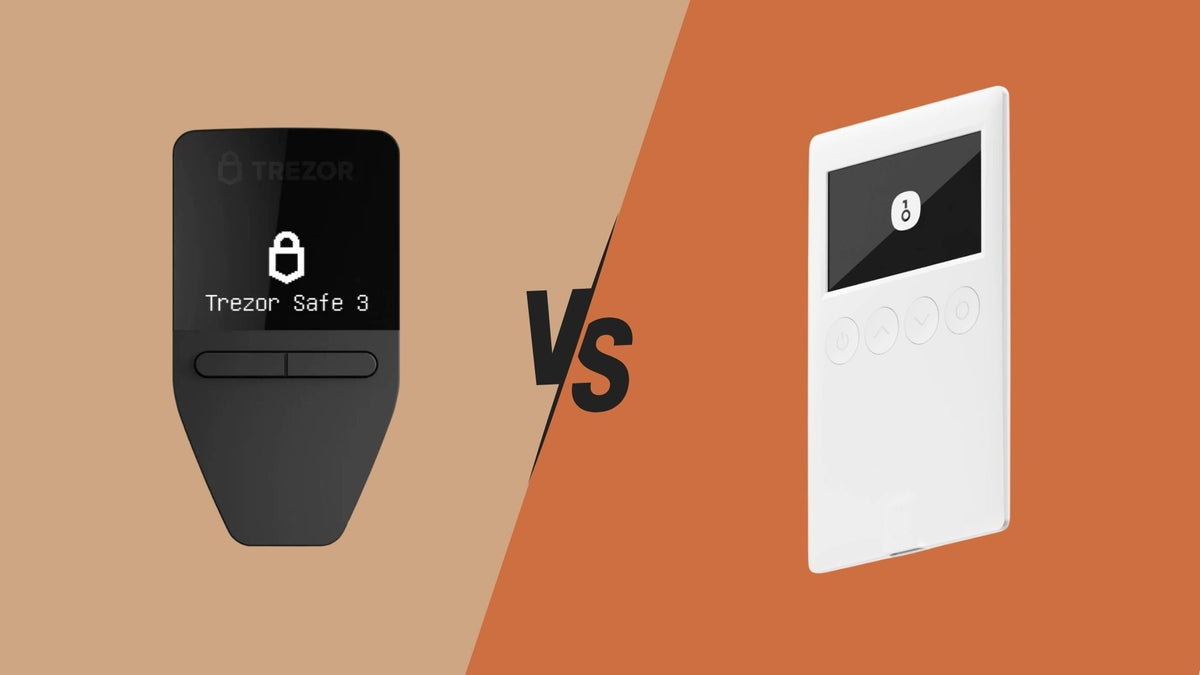
- Special Role of Hardware Wallets (Trezor & OneKey): Devices like Trezor and OneKey have built-in FIDO2 / U2F support. You can use them immediately as security keys for Google, Binance, Bitkub, and more.
- Pros: Provides 100% complete protection against Phishing. Secure from all forms of data interception.
- Cons: Requires purchasing the device and always carrying it with you.
You can watch a demonstration of its use at How to Use U2F on Hardware Wallets
4. Passkeys (New Generation FIDO Standard)
- How it works: An evolution of the FIDO2 standard, using device biometrics (Face ID, Touch ID) for unlocking instead of passwords.
- Pros: Extremely easy and convenient to use. Excellent protection against phishing attacks.
- Cons: Not all services support it yet, and cross-OS synchronization can be complex. There's also an indirect risk if a Master Cloud account like Apple ID / Google Account is compromised.
Comparison Table: Security, Convenience, and Risks
| 2FA Type | Security Level | Convenience | Phishing Immunity | SIM Swap Protection | Main Risks |
|---|---|---|---|---|---|
| SMS / Email OTP | ⚠️ Low | ⭐️⭐️⭐️⭐️⭐️ | ❌ Not protected | ❌ High risk | SIM Swapping, SS7 Interception |
| Software TOTP App | 🟢 High | ⭐️⭐️⭐️⭐️ | ⚠️ Not 100% | ✅ Secure | Real-time Phishing, Cloud Sync |
| Hardware Wallet | 🛡️ High |
⭐️⭐️⭐️ | ✅ Protected |
✅ Secure | Lost device |
| Passkeys | 🛡️ High |
⭐️⭐️⭐️⭐️⭐️ | ✅ Protected |
✅ Secure | Cross-OS management |
Why Security and Crypto Enthusiasts Should Disable Cloud Sync in Google Authenticator?
Following the news of a user whose BTC was transferred to an Exchange and then hacked due to the attacker accessing 2FA codes backed up to the Cloud, it became clear that users need to be more aware of the usage, risks, and understanding of the Cloud Sync feature. You can read the full article at 26 Million Baht Gone in 12 Hours After Transferring BTC to Exchange Due to One Mistake in Google Authenticator
In 2023, Google Authenticator added a Cloud Sync feature that automatically backs up codes to your Google Account. While convenient, this is a "double-edged sword" for the following reasons:
- Creates a Single Point of Failure: All 2FA codes for various services are consolidated into a single Google Account.
- If your Google Account is hacked = Everything is hacked: A hacker simply needs to log into Google Authenticator on their device, and all your codes will be downloaded immediately.
- Degrades 2FA to 1FA: When both your password and 2FA authenticator are linked to the same account, the principle of security separation becomes meaningless.
How to Check the Cloud Sync Status (Cloud Symbol)
Look at the top right corner of the app screen.
- Sync On status (risky): The cloud icon with a checkmark (☁️✔️) along with a Google profile picture indicates that codes are being uploaded to the cloud.
- Sync Off status (most secure): The cloud icon with a diagonal line through it (☁️🚫) or a gray profile icon without an account indicates that data is stored locally only.
How to turn off Cloud Sync in Google Authenticator (Step-by-Step)
To make the app function 100% offline again, follow these steps:
- Open the Google Authenticator app.
- Tap on the Google account profile picture in the top right corner.
- Select "Use Authenticator without an account".
- Tap "Continue" to sign out.
- Check that the cloud icon has changed to gray with a strikethrough (☁️🚫).
Important Precautions and Measures to Prevent Code Loss
⚠️ Important Warning: The Google Authenticator app itself does not have a system for generating Backup Codes or a Master Key for recovery. Therefore, when you turn off Cloud Sync, all code data will be stored on that device only (Local Storage). If your phone is lost, dropped in water, or the app is accidentally deleted, the codes will be permanently lost immediately.
To prevent login issues, I recommend the following prevention methods, divided into 2 main parts:
Part 1: Backing up data via "destination websites" such as Exchange, social media, or Google (during initial setup)
- Jot down the "Setup Key" displayed on the webpage when 2FA is first enabled.
Source: When we enable 2FA on various websites, the webpage always shows a QR Code along with 16–32 alphanumeric characters (Setup Key / Secret Key) below it.
How to use: This code set is not for Google Authenticator but is the source code from the website. Write it down and keep it offline. If your phone is lost, you can enter this code into the app on a new device to generate the same 6-digit number set immediately.
- Download and keep the "Backup Codes / Recovery Codes" for each website.
Source: Websites like Binance, Google accounts, and Facebook often provide a set of Backup Codes (8–10 emergency codes) when we enable 2FA.
How to use: This set of codes is for direct entry on the webpage to log in in an emergency if your phone is lost, without relying on the Authenticator app.
Part 2: Backing up data via the Google Authenticator app's function (if not noted during initial setup)
- Transfer codes to a "backup phone" (Transfer Accounts).
This is the only way to back up data via the Google Authenticator app offline.
How to do it: Go to the Transfer accounts menu ➔ Select Export accounts ➔ Use a backup phone (e.g., an old phone at home) to scan the QR Code to immediately clone all 2FA codes to another device (you can also save the QR code image for backup).
Recommendation: "If you save it as an image, do not save it on a phone connected to the internet, as malware or cloud photo syncing systems could expose the QR Code image. It is recommended to store the image file on an unconnected phone, an offline flash drive, or print it out and store it in a safe place instead."
Alternative Option: Switch to apps that support built-in Encrypted Backup
Consider using open-source apps like 2FAS or Aegis⚬ if you want offline security but prefer a more convenient file backup system. Apps like 2FAS or Aegis have a function to create an Encrypted Backup File (a password-locked backup file) which allows you to safely store the file on a flash drive or computer.
🚨If you are going to use alternative apps, please study them carefully before use (I haven't tried them yet).
Summary
In the world of cybersecurity and cryptocurrency, one iron rule always holds true:
"Convenience is the enemy of security"
While Google's addition of Cloud Sync introduces potential risks, it doesn't mean Cloud Sync is inherently bad. It's designed to meet the needs of general users who often forget to back up data and lose codes. However, for those holding Bitcoin or high-value assets, this convenience might unknowingly bring back "centralized risk."
The safest approach remains Self-Custody & Self-Sovereignty, meaning controlling all your keys and security information yourself. If you already have a Hardware Wallet like Trezor or OneKey, I highly recommend enabling the FIDO2 / U2F feature to use your hardware wallet as a 2FA key for your most important accounts.
Frequently Asked Questions (FAQ)
Q1: If Cloud Sync is turned off, will the existing codes disappear?
No, they won't disappear. The existing codes will still be in the app and function normally; they will simply stop syncing to the cloud.
Q2: How is using a Hardware Wallet as 2FA better than a mobile app?
Because mobile apps are still vulnerable to users being tricked into entering 6-digit codes into fake websites. A Hardware Wallet, however, verifies the website's genuine domain. If it's a fake website, the device will strictly refuse to approve the transaction.
Q3: If Cloud Sync is off and I lose my phone, how can I access my account?
If you lose your phone, try to recover it by following these steps in order:
- Check your backup phone: See if you have used the "Transfer accounts" function to clone a backup of your 2FA codes to a backup phone (e.g., an old phone at home) or if you have saved the QR code used for "Transfer accounts." If so, you can immediately view the 6-digit code from that device to log in.
- Use Backup Codes / Recovery Codes: If you don't have a backup device, check if you have saved your emergency recovery codes (the set of numbers provided by the destination website when you first enabled 2FA). You can use this set of codes to log in directly on the website.
- Use Setup Key (Secret Seed): If you noted down the 16–32 character alphanumeric code (Setup Key) obtained during the initial 2FA setup, enter that code into the Authenticator app on your new device to regenerate the same 6-digit OTP code.
- Contact Support for KYC: If you haven't backed up your data as per points 1–3, the last resort is to contact the support team of each platform, submit identity verification documents (KYC), and request to unlock/reset the 2FA system. This method may take several days for verification and data recovery.


แชร์:
What Is a Hardware Wallet and Why Every Crypto Investor Needs One
ทำไม Authorized Reseller ถึงช่วยลดความเสี่ยง Supply Chain Attack ได้มากกว่าที่คิด?