


Table of Contents
- Blockstream Jade Setup Guide
- What's Included with Blockstream Jade
- Getting Started with Blockstream Jade
- Using the Buttons
- Jade Screen Statuses Users Should Know
- Inactive Status
- Ready Status
- Setting Up Blockstream Jade
- Recording the Seed Phrase
- Connecting to the Application
- How to Unlock Blockstream Jade
- Steps to Unlock Using the Air-Gapped Method
Blockstream Jade Setup Guide
What's Included with Blockstream Jade
- Jade Classic box
- Jade Classic manual
- Jade Classic
- Pen + paper (for writing down the Recovery Seed)
- Pen + paper (for writing down the SeedQR)
- Computer (Windows / macOS / Linux) or Android smartphone

Getting Started with Blockstream Jade
Using the Buttons
- Press the power button: Press and hold the power button at the bottom right corner of the Jade device, located at position 1
- Confirmation button: Press to confirm your selection on the screen
- Navigation buttons: Press the left or right button to navigate the menu. Pressing both buttons at the same time can be used instead of the Select button (Jade Plus only)
- USB-C port: A port for connecting accessories, such as charging the battery or connecting other accessories
- Screen: Displays transaction details or displays a QR code
- Camera: Scan QR codes to access the wallet or perform Air-Gapped transactions

Jade Screen Statuses Users Should Know
Inactive Status
- Uninitialized: The Jade device has not been set up yet. Users must complete the setup.
- Initialized: The Jade device has been set up, and a PIN is required to unlock it
- Wallet data is encrypted on the device and requires a PIN to unlock. Jade can be unlocked by connecting to the companion application via USB, Bluetooth, or QR code

Ready Status
- Active: The wallet is ready to use. You can perform transactions and access other related features
- Active (Temporary): Similar to a regular session, but a clock icon will appear to indicate that a temporary session option has been selected (e.g., SeedQR or Temporary Signer). Users must enter the PIN to unlock the device again

Setting Up Blockstream Jade
- Press the Jade power button. Press and hold the power button. Make sure the battery is fully charged. Before use, charge the battery for about 4-5 hours
- Select “Setup Jade ”
- Select “Begin Setup” (This guide is for first-time users. We recommend choosing Begin Setup first, while Advanced Setup will be covered in the next Jade article.)
- Select “Create New Wallet” to create a new Seed Phrase

Recording the Seed Phrase
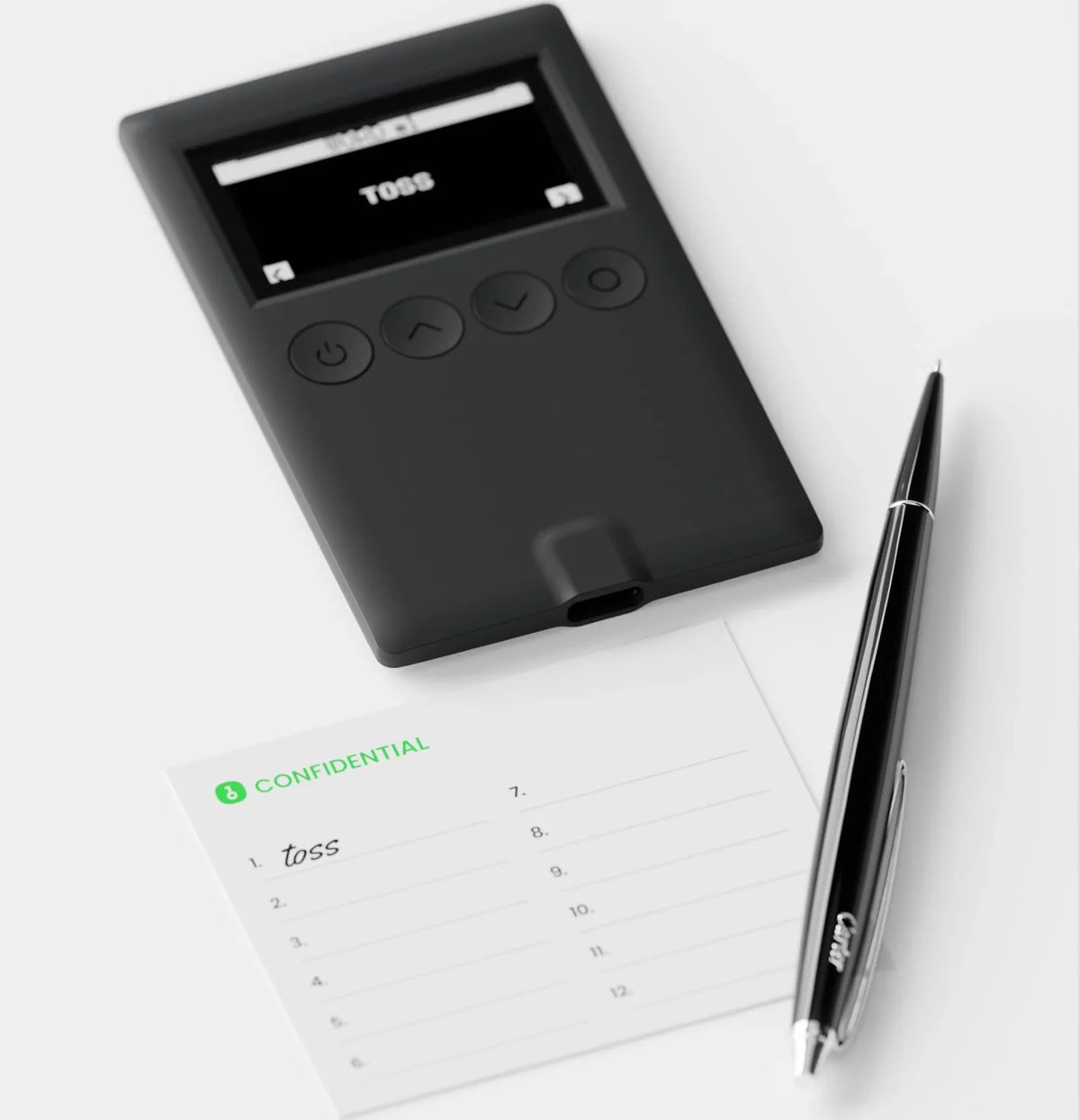
- Write down the Seed Phrase offline. Do not take a photo or store it online
- If Begin Setup is selected - 12-word Seed Phrase
- If Advanced Setup is selected - You can choose to use 12 or 24 words
- Write down the Seed Phrase in full as specified
- Verify the Seed Phrase again by selecting the correct words from your Seed Phrase before proceeding to the next step
- Once the Seed Phrase has been recorded and verified, the device will prompt you to choose a connection method. You can choose to connect via USB, Bluetooth, or QR code
- The Seed Phrase will not be saved to the Jade until the PIN setup is complete

Connecting to the Application
- For beginners, we recommend choosing Bluetooth if you want to connect to a smartphone
- Download and install the Blockstream BTC Wallet (Green) Application on your smartphone
- Open the Blockstream app and select “Connect Jade”
- The application will begin searching for your Jade via Bluetooth connection as described above

- Select your Jade in the Blockstream app when it appears and continue by pairing your device
- Select Pair to connect the Jade to your smartphone
- Press Confirm on the Jade Plus

- Select your Jade in the Blockstream app when it appears and continue by pairing your device
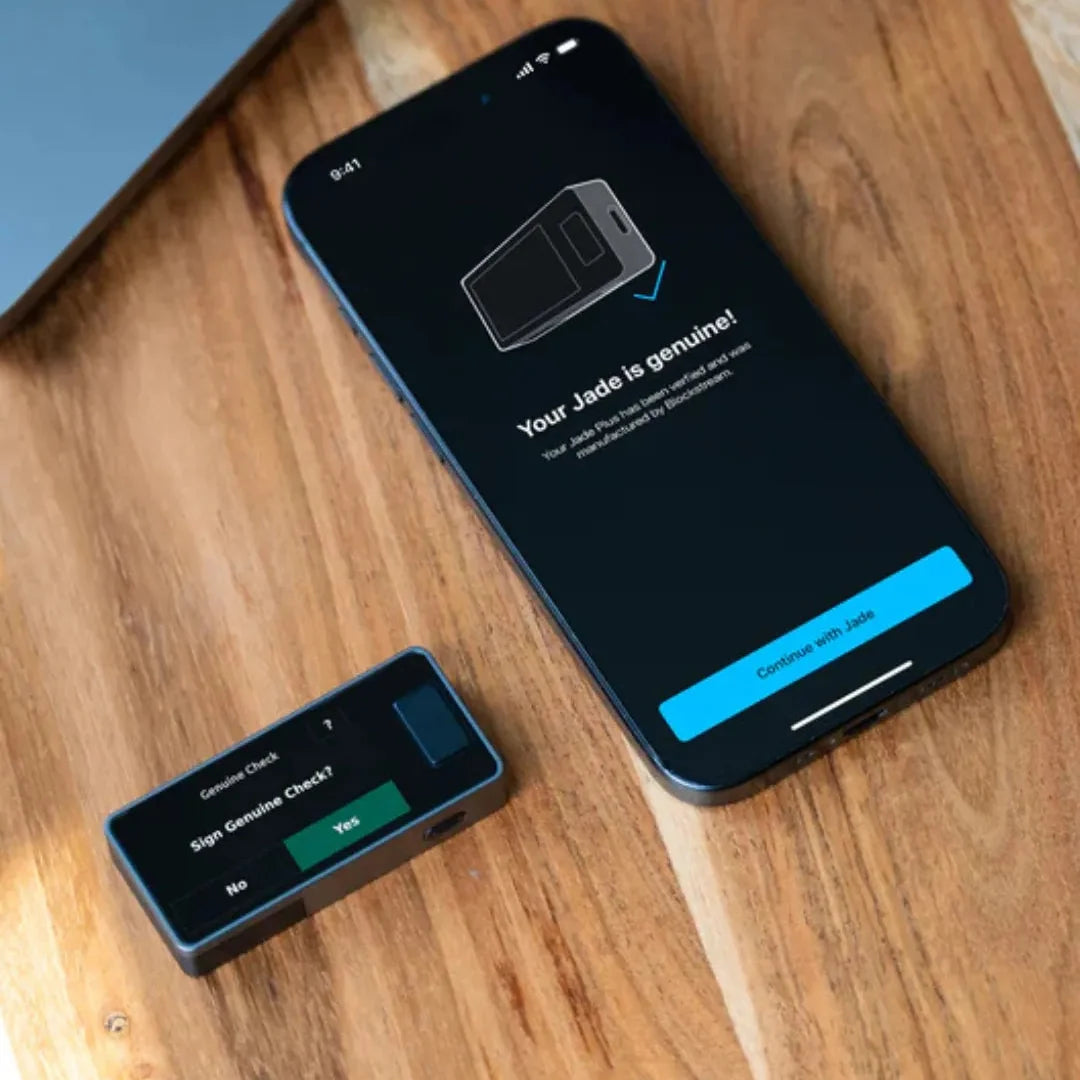
- Select Genuine Check to verify that the device is genuine from Blockstream
- The Jade Plus will prompt you to confirm the check. Press Yes

- Afterward, the app will display that the check was successful. Press Continue with Jade
- The system will prompt you to set a PIN
- Once we have set the PIN, it is ready to use

How to Unlock Blockstream Jade
Normally, our Blockstream Jade automatically enters lock mode after being inactive for a while, similar to our smartphones, which can cause confusion for many users who are just starting out.
There are 3 ways to unlock it
- Unlock by connecting via USB (used when using it with a computer)
- Unlock by connecting via Bluetooth (used when using it with a smartphone). Simply connect to the application on your smartphone and enter the PIN to unlock it
- Unlock by scanning a QR code (Air-gapped)
We recommend methods 1 and 2 because they are easier and more convenient
Steps to Unlock Using the Air-gapped Method
- Navigate to the QR Mode menu
- Press QR PIN Unlock
- The device will display a QR code. Use your smartphone to scan it to access the website used for unlocking, and press Continue

- Navigate to the QR Mode menu
- Press QR PIN Unlock
- The device will display a QR code. Use your smartphone to scan it to access the website used for unlocking, and press Continue
- Your smartphone will prompt you to unlock with the PIN, and enter the PIN on the Jade

- The Jade will display a QR code for you to scan
- Hold up your smartphone to scan the QR code, and once scanned, press the checkmark on the Jade
That's it. Your Jade is set up and ready to receive and send Bitcoin
แชร์:
Trezor Safe 5 Quick Start Guide
Foundation Passport (Batch 2) Quick Start Guide