


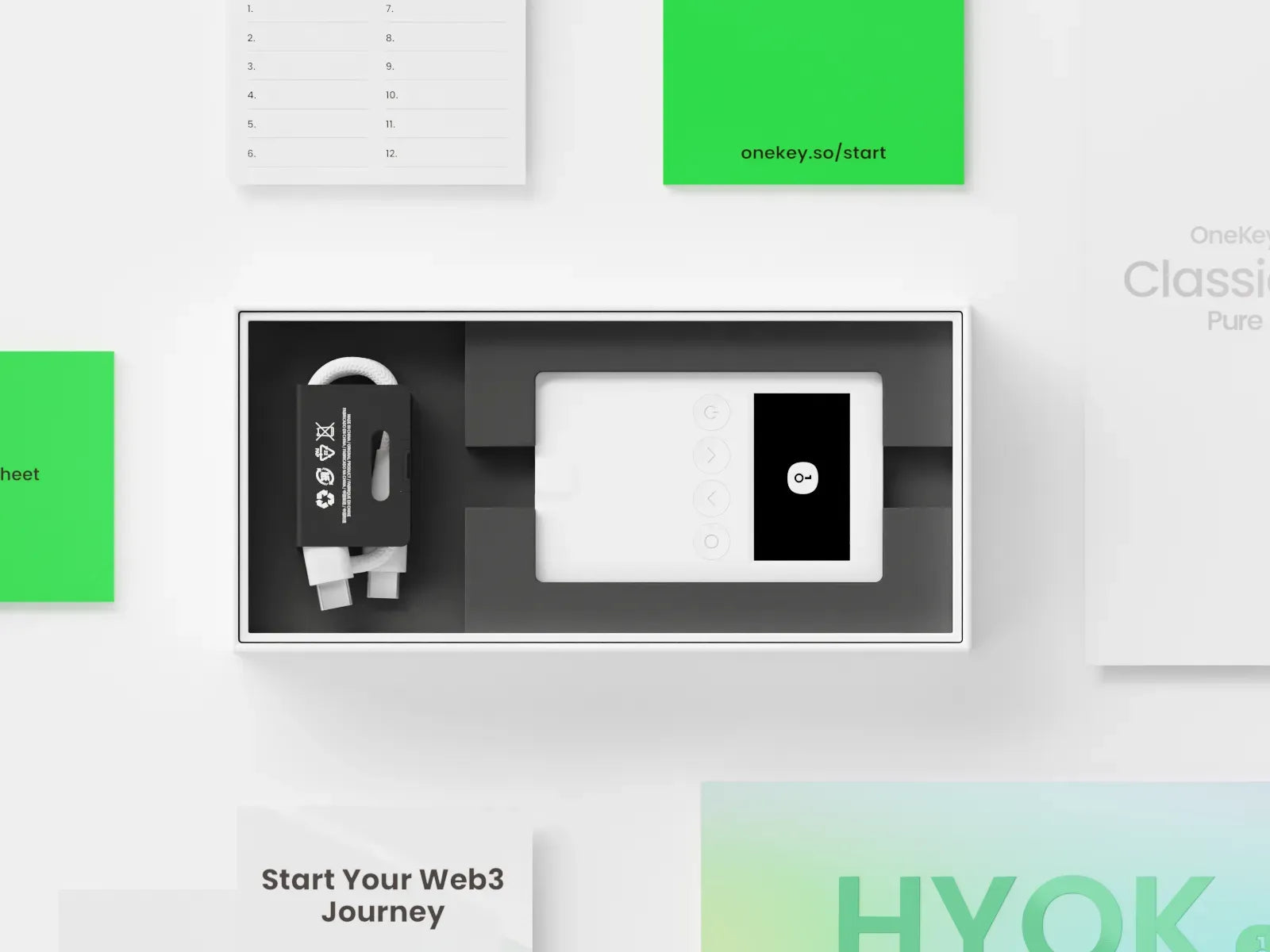
Step-by-step guide to getting started with OneKey Classic 1S Pure
Welcome to the world of "Self-Custody" and the unparalleled experience of managing your digital assets yourself. Your choice of the OneKey Classic 1S Pure demonstrates your strong commitment to digital asset security. This model is perfect for HODLers (long-term holders), as the "Pure" designation signifies the removal of the battery to eliminate long-term battery degradation issues.
This guide will simplify the process and walk you through each step.
1. Initial Recommendations and Requirements
Precautions before use
Before beginning the setup process, it is important to inspect the packaging and holographic seal to ensure that your device has not been tampered with by others. If any signs of tampering are found, discontinue use of the device immediately and contact Bitcast for assistance and to arrange a replacement device.

What you need to prepare
- OneKey Classic 1S Pure device
- The OneKey App downloaded and installed (for Desktop, Browser Extension, or Mobile)
- Recovery Phrase (Seed Phrase) card included in the box
- Pen for writing down the Seed Phrase


2. Device Initialization
Steps 1 to 3 involve setting up the OneKey Classic 1S Pure device directly. These steps apply to both desktop and smartphone connections.
Step 1: Power on and select language
- Press and hold the power button until "Power on" appears to turn on the OneKey Classic 1S Pure.
- Select your preferred language according to the on-screen instructions. We recommend selecting "English."
- Press the right button on the OneKey Classic 1S Pure to proceed.

Step 2: Create a New Wallet
- Select the "Create New Wallet" menu to create a new wallet.
- Choose the number of words for your Recovery Phrase (e.g., 12 or 24 words).

- Use the Seed phrase card to write down the 12/24 words as they appear on the screen.
- Carefully record "Word #1", ensuring both the order and spelling are correct.
- Repeat this process for all 12-24 words you selected earlier.

Security Recommendations (Seed Phrase)
- Recovery Phrases (or Seed Phrases) must be kept safe as they are the sole key that can recover your assets.
- Never make digital copies of your Seed Phrases and never upload them online.
- Keep them in the safest possible place, accessible only to you or individuals you trust completely.
Step 3: Review and Confirm Recovery Phrase
- When the screen displays "Check Words Again," verify and compare the words you wrote on the Seed Phrase card with the words displayed on the OneKey device to ensure both the order and spelling match.

- Verify and confirm each Recovery Phrase word by selecting the correct word when prompted by the device.
- Repeat this process until the message "Awesome! Your backup is complete." appears.


Step 4: Set a PIN Code
- Set a PIN (4 to 9 digits) to unlock your OneKey device.
- Select the PIN digits (1 to 9, no 0).
- If setting a 6-digit PIN, select ☑️ for the 7th digit to confirm.
- Re-enter the PIN to confirm.

- When the screen displays "Wallet is ready! Download ...", it means the hardware wallet setup is complete. Please follow the on-screen instructions and proceed to the next step (Step 5).

Security Recommendations (PIN Code)
- The PIN code is used to unlock the OneKey device and can be changed later.
- If the PIN code is entered incorrectly 10 times consecutively, the hardware wallet will be completely reset.
- Do not use a device that has a pre-set PIN code or Recovery Phrases.
3. Connecting to Smartphones
Step 5: Connect to the OneKey Mobile App
- Download and install the OneKey App (mobile version).
- Click on the account name and select "Add wallet."
- Ensure your phone's Bluetooth is enabled and bring the OneKey Classic 1S Pure device close to your phone.
- Select "Connect hardware wallet."

- Press "Start connection."
- Tap on the device name (e.g., K1111) to proceed.
- Enter the pairing code displayed on your hardware wallet into the OneKey App to pair the device.

- Confirm on the OneKey Classic 1S Pure device to verify device authenticity.
- Click "Continue" when "Verification successful" is displayed.
- Wait until the OneKey App has finished creating the wallet account.


Step 6: Check Wallet Address
- In the OneKey Mobile App, click "Receive."
- Select the coin for which you want to check the receiving address (e.g., Bitcoin).
- Choose the Address type.

- Select "Verify on device."
- Compare the address displayed on the OneKey App with the address on the OneKey Classic 1S Pure device.
- Confirm on the device if both addresses match.


Congratulations! Your OneKey Classic 1S Pure is now ready to serve as a "safe" to protect your digital assets. As long as you keep your Seed Phrase (the 12 or 24 words written on paper) as safe as possible, your coins will be secure forever.
Not your keys, not your coins.
แชร์:
How to Use Unikey Security Key
Trezor Safe 7 Setup Guide (Mobile)