


- Most important warning before performing a Factory Reset!
- Steps to Reset Trezor Safe 5 via Bootloader Mode
- 1. Slide and hold the screen, then plug in the USB cable.
- 2. Click the 3-line icon (☰) in the top right corner.
- 3. Select FACTORY RESET.
- 4. Confirm Reset (tap RESET).
- 5. Wait for the device to complete the process.
Hello Trezor users and self-custody enthusiasts,
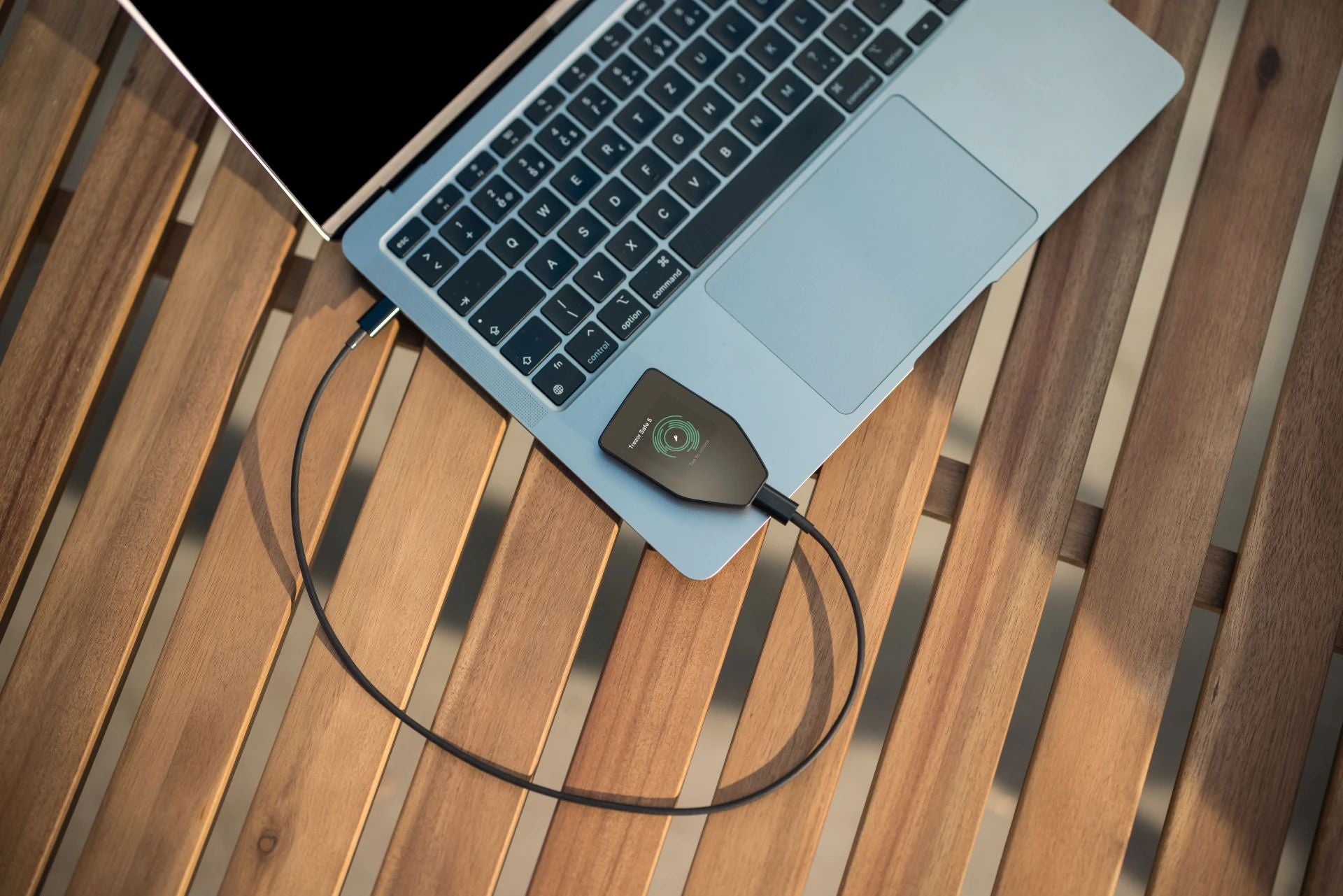
After I previously introduced how to reset older models like Trezor Model One and Safe 3, today we'll take a look at the top-of-the-line model with a vibrant color touchscreen, the Trezor Safe 5.
The Trezor Safe 5 has been upgraded for ease of use with a color touchscreen, haptic feedback, and a high-level Secure Element chip. However, if you forget your PIN, make a mistake in settings, or want to wipe the device to set up a new wallet from scratch, performing a Factory Reset via Bootloader Mode can be done easily through the touchscreen without needing an application.
.
Most important warning before performing a Factory Reset!
🚨 WARNING: Performing a Factory Reset on Trezor Safe 5 will permanently delete all data from the device, including Seed Phrase, PIN, and Firmware.
If you still have assets in this wallet, you must be 100% sure that you have a backup of your Seed Phrase (Recovery Seed) recorded. Because if you wipe the device without a backup Seed Phrase, your crypto assets will never be recoverable!
Steps to Reset Trezor Safe 5 via Bootloader Mode
The Factory Reset process for Trezor Safe 5 can be done directly through the touchscreen in these 5 steps:
[Step 1] Slide and hold the screen + plug in the USB cable (to enter Bootloader)
↓
[Step 2] Tap the 3-line icon (☰) in the top right corner of the screen.
↓
[Step 3] Tap to select FACTORY RESET.
↓
[Step 4] Read the red warning screen → Tap to confirm RESET.
↓
[Step 5] The screen displays "Trezor reset successfully" → Reconnect the cable, ready for use.
1. Slide and hold the screen, then plug in the USB cable.
Initially, the USB cable will not be connected to your Trezor Safe device. First, use your finger to slide and hold the touchscreen while plugging the USB cable into your computer to enter Bootloader Mode.

2. Click the 3-line icon (☰) in the top right corner.
Once you are on the BOOTLOADER screen, look for the 3-line menu icon (☰) in the top right corner of the screen. Tap on this icon with your finger.

3. Select FACTORY RESET.
The screen will display system setting options. Tap to select FACTORY RESET.

4. Confirm Reset (tap RESET).
The screen will turn red with a security warning message: "Are you sure you want to factory reset the device? SEED AND FIRMWARE WILL BE ERASED!"
Once you have checked and confirmed, tap the white RESET button on the right to confirm the data wipe.

5. Wait for the device to complete the process.
Once the system successfully wipes the data, the touchscreen will display an orange message with a checkmark: "Trezor reset successfully - PLEASE RECONNECT THE DEVICE."
Disconnect the USB cable and then plug it back in. Then open the Trezor Suite program to start creating a new wallet or restore an existing wallet using your Seed Phrase.



แชร์:
Step-by-Step Guide to Wiping Your Trezor Safe 3 (PIN Forgotten)
Factory Reset (Wipe Device) Guide for All Trezor Models